 Academy
Find a past order
Search order history by number, customer or table, reprint a receipt and see how an order was paid.
- 51 seconds
- 10 steps
- Everyday
- For cashiers, waiters and managers
10 steps · no soundFirst: Tap Orders in the left menu
Steps
Tap a step to play the video from that point.
About this task
Guests come back with questions: a lost receipt, a charge they do not recognize, an item they think was missing. The Orders page lets you find any order and see what was ordered and how it was paid.
Narrow the list before you search. Pick the status and the date first, then type the order number, the customer’s name or the table.
Reprinting a receipt prints a copy of the same order. It does not change the order or add a new sale.
Good to know
- Refunds start here
- Full Refund and Partial Refund are on the order details page, for staff with the refund permission.
- Voided items stay visible
- A voided item stays on the order marked Voided, so you can see what was taken off and why the total changed.
Details
- Topic
- Find and fix orders
- Level
- Everyday. You will use these on most shifts.
- Video
- 51 seconds, no sound, captions on screen
- Last checked
- , against Till CloudPOS
Related guides
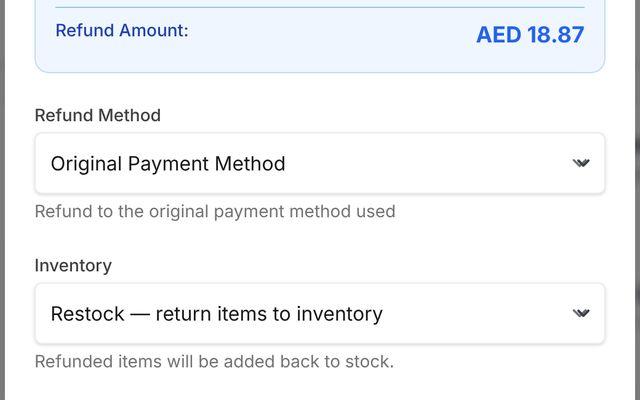
Refund a paid order
Give money back on a paid order, choose how it is refunded, and record the stock and the reason.
47 secondsAdvancedManager, Owner
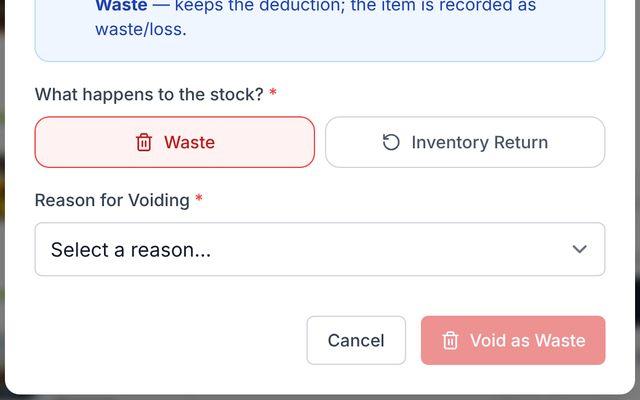
Void a sent item
Remove an item the kitchen already has, record what happened to it, and get a manager’s approval.
43 secondsEverydayCashier, Waiter, Manager
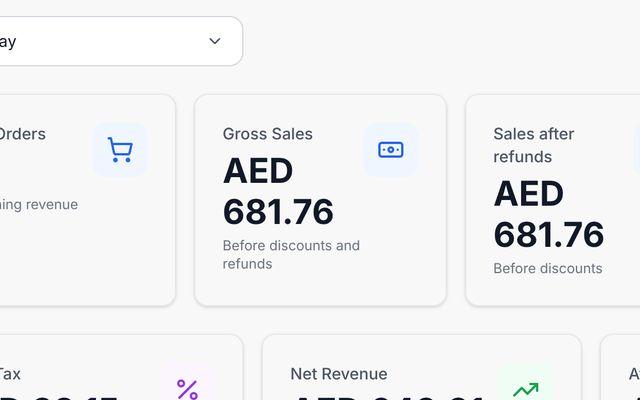
Check today’s sales
Open the Sales Summary to see orders, gross sales, net revenue and how guests paid, for any date range.
47 secondsAdvancedManager, Owner