 Academy
Check today’s sales
Open the Sales Summary to see orders, gross sales, net revenue and how guests paid, for any date range.
- 47 seconds
- 9 steps
- Advanced
- For managers and owners
9 steps · no soundFirst: Open Reports
Steps
Tap a step to play the video from that point.
About this task
The Sales Summary answers the end of day questions: how many orders, how much was sold and how guests paid. Check it every day, so a problem shows up the same day and not at month end.
Gross sales is the total before discounts and refunds. Net revenue is what you keep after discounts and tax. If the gap between them is bigger than usual, look at the discounts and refunds given that day.
The payment breakdown should match what was counted at shift close: cash against the drawer, card against the card machine’s end of day total.
Good to know
- Other reports
- The Reports page also has a Sales Report, an Orders Report and Top Products for a closer look.
- Refunds have their own report
- Every refund is listed in the Refunds report with the reason given for it.
Details
- Topic
- Read your reports
- Level
- Advanced. For managers and for setting up.
- Video
- 47 seconds, no sound, captions on screen
- Last checked
- , against Till CloudPOS
Related guides
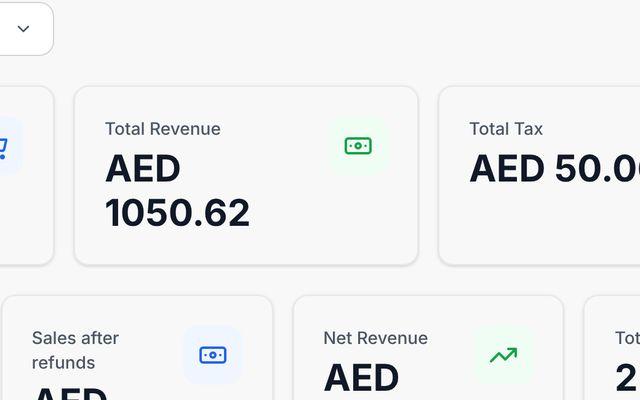
Read the Z report
Use the end-of-day summary to check revenue, refunds, voids, the cash you should have and how guests paid.
51 secondsEverydayManager, Owner
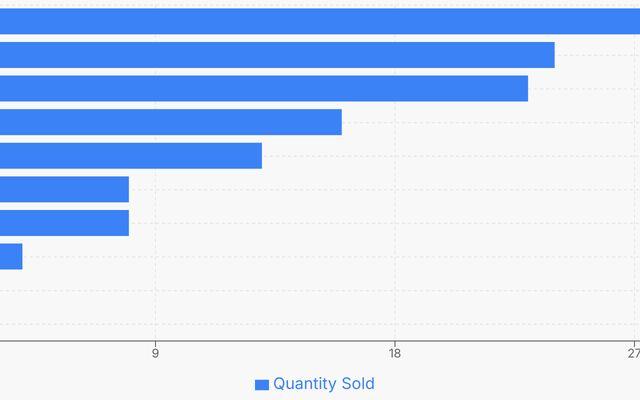
Find your best sellers
Read the Top Products report to see which items sell the most, by quantity and by revenue.
51 secondsEverydayManager, Owner
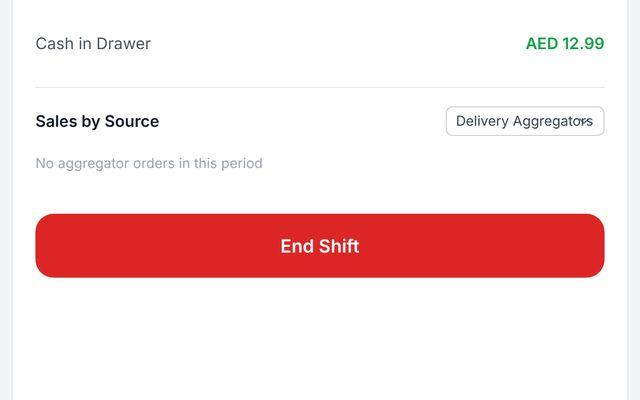
Close your shift
Read your shift report, count the cash you took and close your shift at the end of the day.
35 secondsBasicsCashier, Waiter