 Academy
Find your best sellers
Read the Top Products report to see which items sell the most, by quantity and by revenue.
- 51 seconds
- 10 steps
- Everyday
- For managers and owners
10 steps · no soundFirst: Open Reports
Steps
Tap a step to play the video from that point.
About this task
The Top Products report ranks your items for any period. It answers two different questions: what do guests order most, and what brings in the most money. The two lists are often not the same.
Pick a date range first. A week is a good default: long enough to smooth out one odd day, short enough to act on.
Use it when you plan the menu and the stock. Best sellers must never run out, and an item at the bottom of both lists may not be worth its place.
Good to know
- More than the top ten
- Change Top 10 to Top 20, Top 50 or All, or filter by category to compare items within one part of the menu.
- Share it
- Export Excel and Export PDF save the report for your accountant, chef or partners.
Details
- Topic
- Read your reports
- Level
- Everyday. You will use these on most shifts.
- Video
- 51 seconds, no sound, captions on screen
- Last checked
- , against Till CloudPOS
Related guides
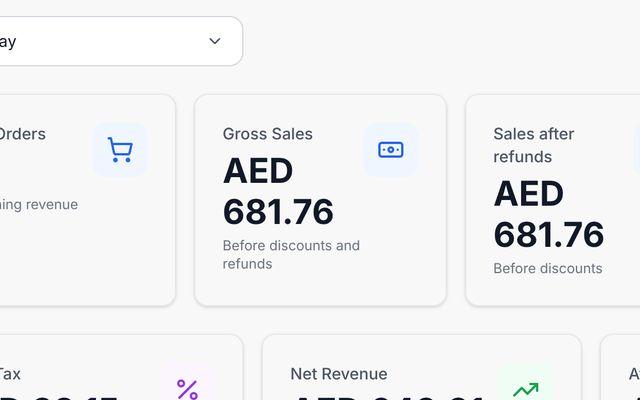
Check today’s sales
Open the Sales Summary to see orders, gross sales, net revenue and how guests paid, for any date range.
47 secondsAdvancedManager, Owner
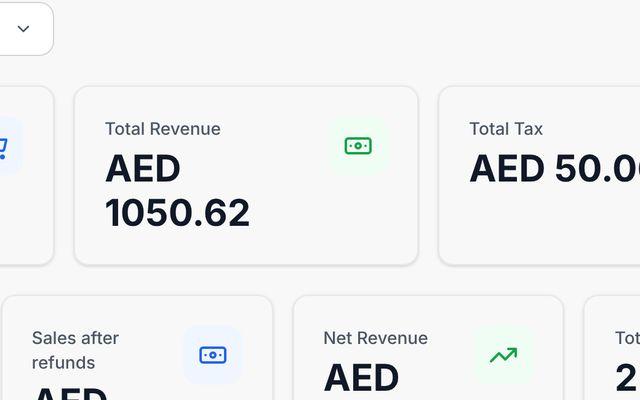
Read the Z report
Use the end-of-day summary to check revenue, refunds, voids, the cash you should have and how guests paid.
51 secondsEverydayManager, Owner
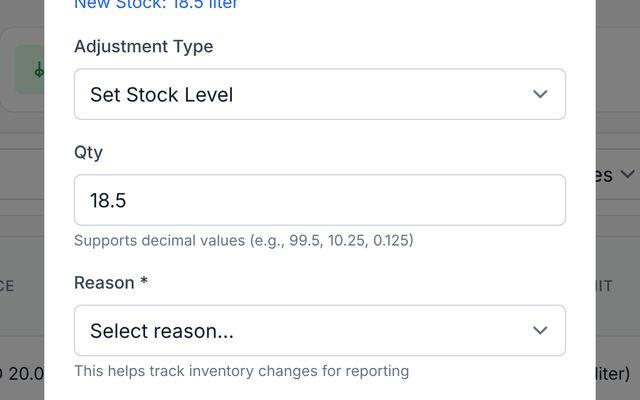
Count and adjust stock
After a stock count, set an item to the amount you counted, with a reason, and see the change on record.
56 secondsAdvancedManager, Owner