 Academy
Till Academy
Short videos that show each job on Till CloudPOS, with the steps written out underneath. Watch one when you need it, or work through all 49.
49 guides · 40 minutes of video · no sound
49 guides to view
Topic
Role
Level
Your progress
23 of 49 guides
Shifts, cash and the day
3 guides · 3 min
Open and close your shift, hand the till to the next person, record cash in and out of the drawer, and open and close the day.
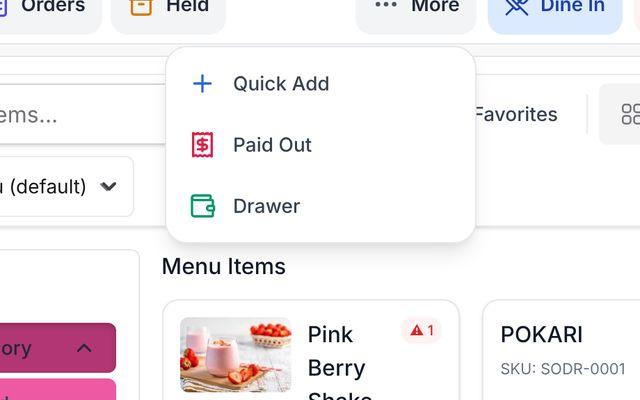
Record cash in and out
Write down a float top-up or cash paid out of the drawer, so the cash count still matches at the end of the day.
1 minuteEverydayCashier, Manager
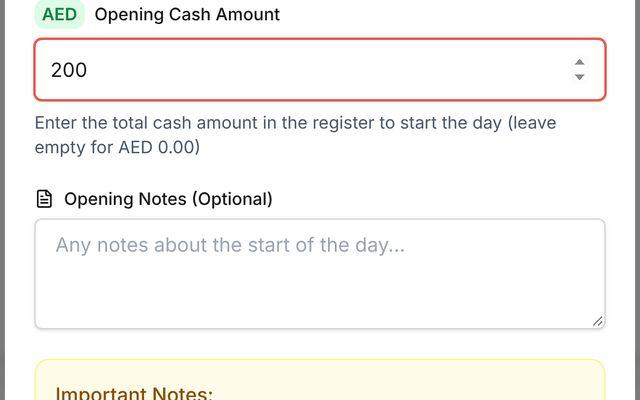
Open the day
Start the daily session with the opening cash, so shifts can start and orders can be taken.
43 secondsEverydayManager, Owner
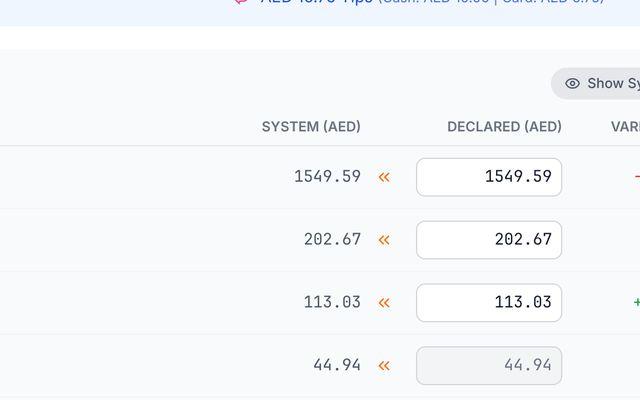
Close the day
Close the daily session after the last shift: check orders and shifts, count the cash and save the day’s report.
47 secondsEverydayManager, Owner
Take orders
3 guides · 3 min
Ring up takeaway, dine-in and delivery orders, with options, notes, customers and items that are not on the menu.
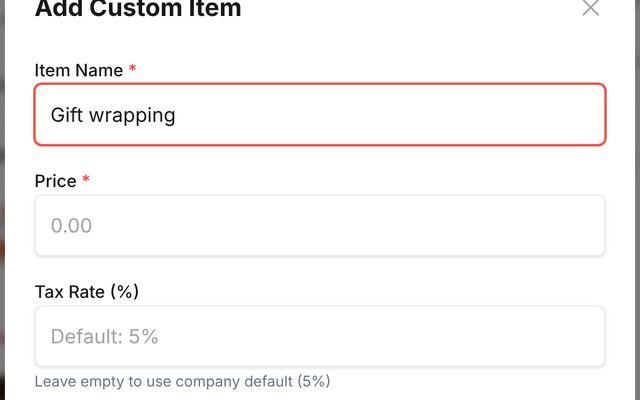
Add a custom item
Charge for something that is not on the menu, such as gift wrapping or a service fee, with your own name and price.
39 secondsEverydayCashier, Waiter
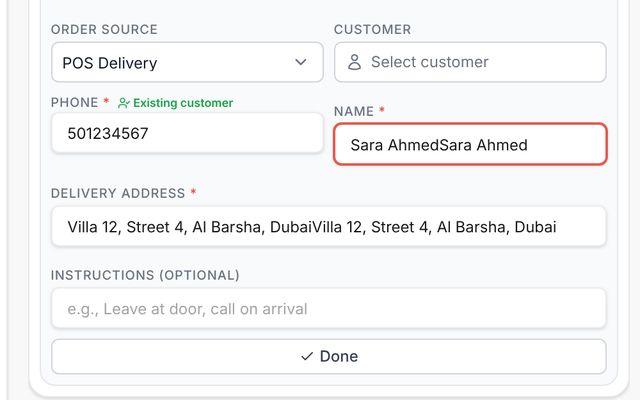
Take a delivery order
Enter the customer’s phone, name and address, add the items, and take payment now or on delivery.
1 minute 12 secondsEverydayCashier
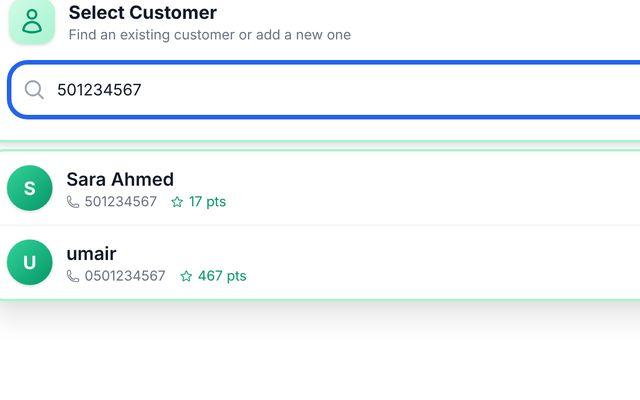
Add a customer to an order
Link an order to a guest by phone number or name, so it is saved to their history.
56 secondsEverydayCashier, Waiter
Take payment
6 guides · 5 min
Take cash and card, add tips, split a bill, apply discounts and charge an order to a customer’s account.
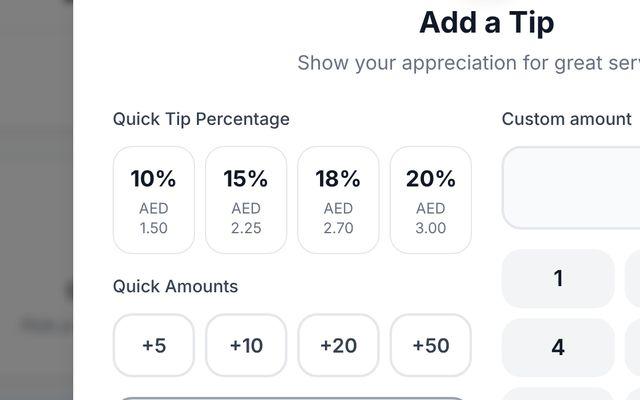
Take a card payment with a tip
Add the guest’s tip before you pick the card, so the card is charged once for the bill and the tip together.
51 secondsEverydayCashier, Waiter
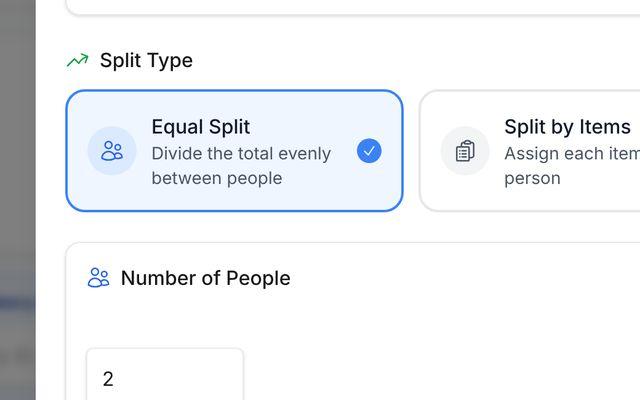
Split a bill between people
Divide one bill into shares so each guest pays their own part, by cash or by card.
47 secondsEverydayCashier, Waiter
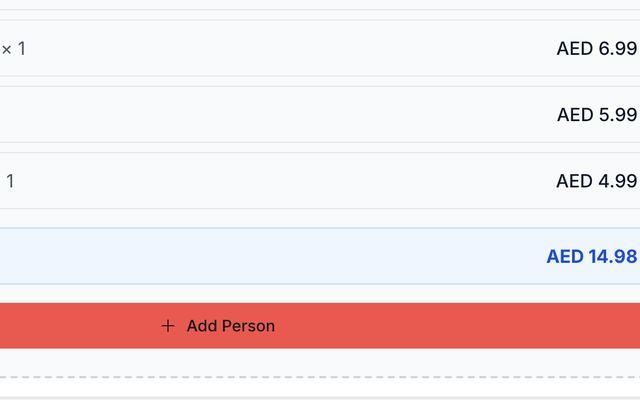
Split a bill by items
Let each guest pay for exactly what they ordered: give every item to a person, then take each payment.
1 minuteEverydayCashier, Waiter
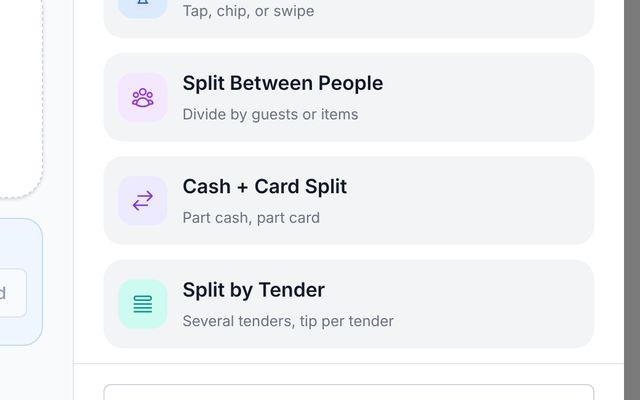
Take part cash, part card on one bill
Let one guest pay part of the bill in cash and the rest by card, using Cash + Card Split.
39 secondsEverydayCashier
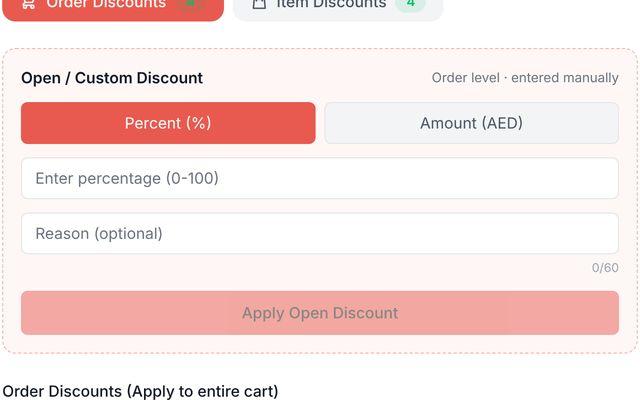
Apply a discount
Take a saved discount, or your own percent or amount, off the whole order before the guest pays.
51 secondsEverydayCashier, Manager
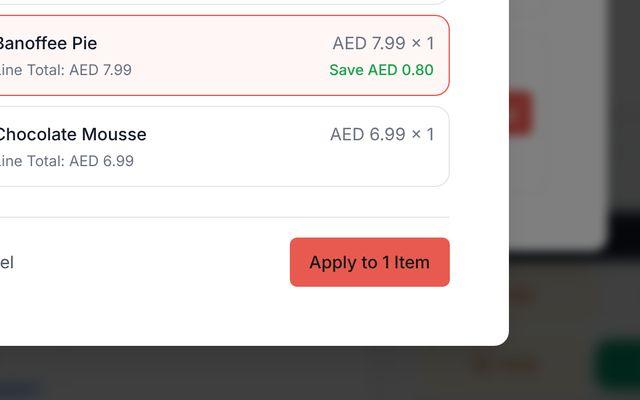
Discount one item
Take money off a single item with a ready-made item discount, and leave the rest of the order at full price.
51 secondsEverydayCashier, Waiter, Manager
Run your tables
2 guides · 2 min
Add rounds, print the bill, move guests and park orders while the room is busy.
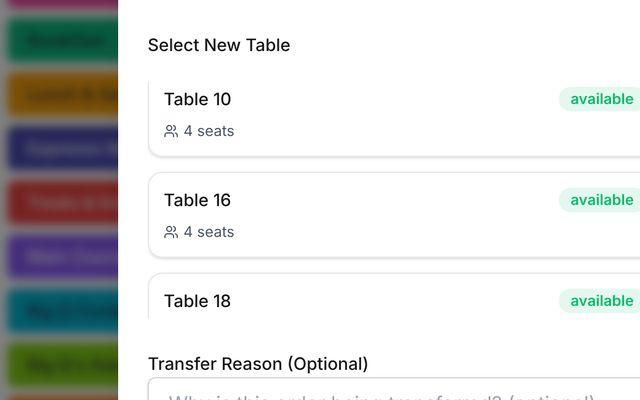
Move guests to another table
Move a table’s open order to a free table when guests change seats, with their items and total.
43 secondsEverydayWaiter, Manager
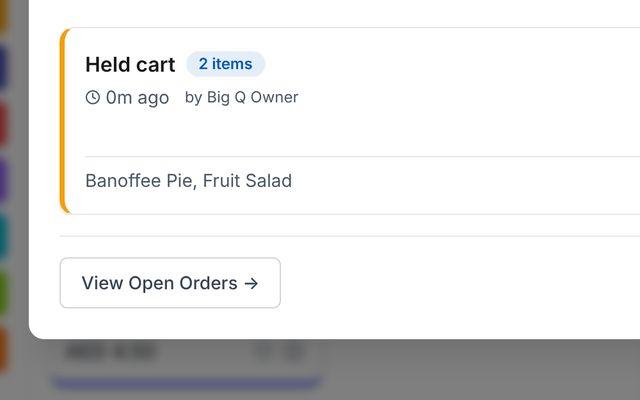
Hold and recall an order
Park a cart while a guest decides, serve the next guest, then bring the held order back.
51 secondsEverydayCashier
Find and fix orders
3 guides · 2 min
Look up past orders, void items or whole orders the kitchen already has, and refund paid orders in full or in part.
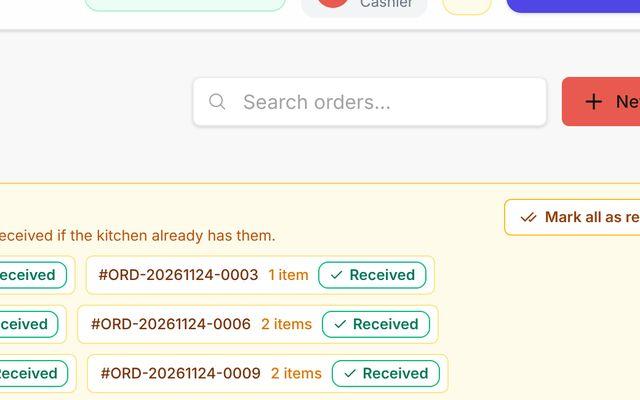
Find a past order
Search order history by number, customer or table, reprint a receipt and see how an order was paid.
51 secondsEverydayCashier, Waiter, Manager
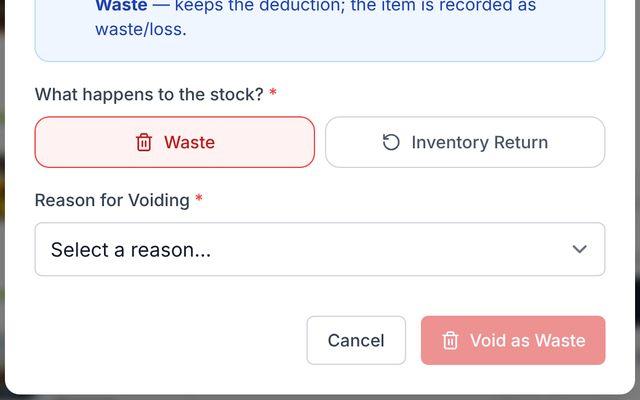
Void a sent item
Remove an item the kitchen already has, record what happened to it, and get a manager’s approval.
43 secondsEverydayCashier, Waiter, Manager
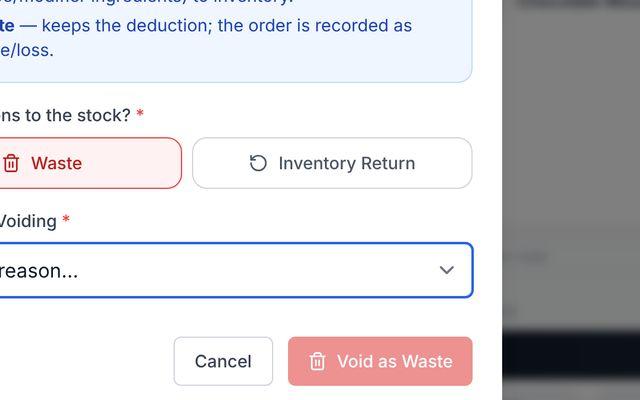
Void a whole order
Cancel an entire order that was already sent, record what happens to the stock, and free the table.
47 secondsEverydayCashier, Waiter, Manager
Build your menu
3 guides · 2 min
Add items and categories, change prices, set up options, sizes and photos, mark items sold out and create discounts.
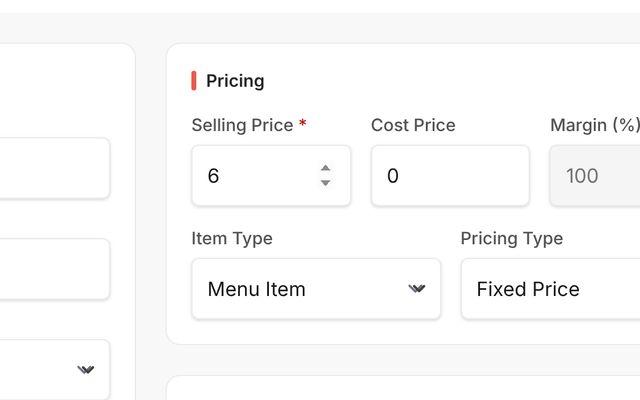
Change an item price
Update the selling price of a menu item in the Catalog and check that the POS shows the new price.
47 secondsEverydayManager, Owner
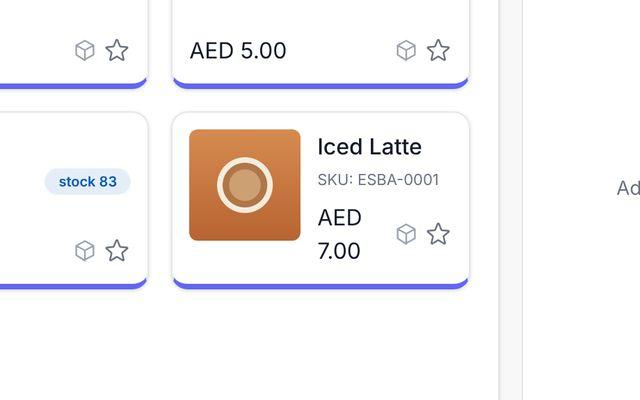
Add an item photo
Upload a photo to a menu item from its edit form, so staff can spot it faster on the POS.
51 secondsEverydayManager, Owner
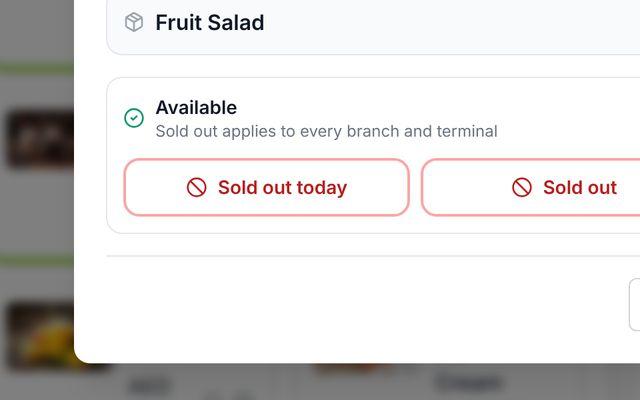
Mark an item sold out
Stop staff selling an item the kitchen has run out of, for the rest of today or until you switch it back on.
47 secondsEverydayCashier, Manager
Kitchen and stock
1 guide · 1 min
Work tickets on the Kitchen Display, count your stock and record deliveries from suppliers.
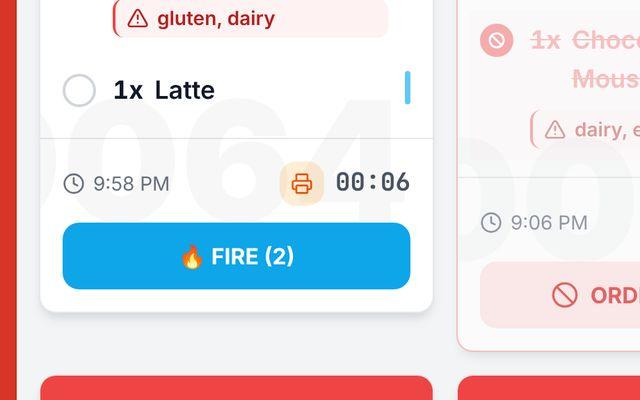
Use the Kitchen Display
Work tickets on the kitchen screen: FIRE to start cooking, Ready when it is done, BUMP when it is served.
47 secondsEverydayKitchen, Manager
Read your reports
2 guides · 2 min
Check the day’s sales, find your best sellers, review voids and refunds, and read the Z report before you close.

Find your best sellers
Read the Top Products report to see which items sell the most, by quantity and by revenue.
51 secondsEverydayManager, Owner

Read the Z report
Use the end-of-day summary to check revenue, refunds, voids, the cash you should have and how guests paid.
51 secondsEverydayManager, Owner