 Academy
Change an item price
Update the selling price of a menu item in the Catalog and check that the POS shows the new price.
- 47 seconds
- 9 steps
- Everyday
- For managers and owners
9 steps · no soundFirst: Search for the item
Steps
Tap a step to play the video from that point.
About this task
Prices change: supplier costs go up, a special ends, a mistake needs fixing. You change the price once in the Catalog and the POS uses it for new orders.
Find the item, tap Edit, change the Selling Price and tap Update Item. The same form holds everything else about the item, so you can fix a name or add a description at the same time.
Check the result on the POS before service. It takes a few seconds and saves an argument at the counter.
Good to know
- Printed menus and QR menus
- The POS and your QR menu read the price from the Catalog. A printed menu does not, so update it too.
- A one-off price
- For a single order, use a discount instead of changing the item price for everyone.
Details
- Topic
- Build your menu
- Level
- Everyday. You will use these on most shifts.
- Video
- 47 seconds, no sound, captions on screen
- Last checked
- , against Till CloudPOS
Related guides
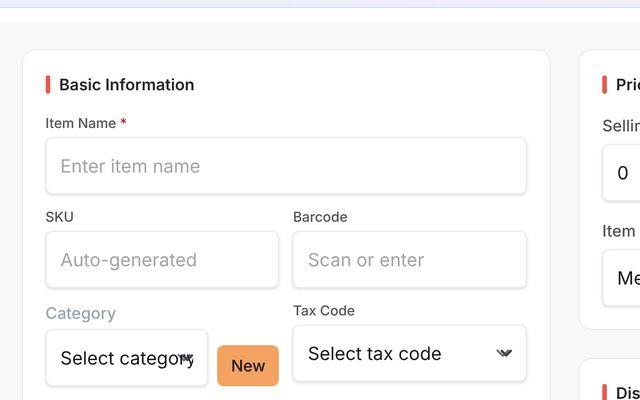
Add a menu item
Create a new item in the Catalog with its category, tax code and price so it shows on the POS.
39 secondsAdvancedManager, Owner
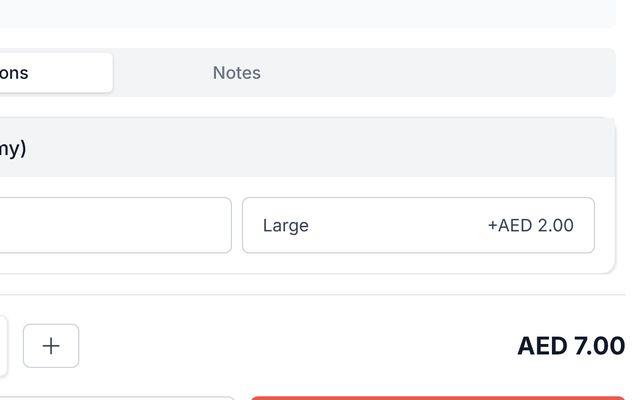
Add sizes to an item
Give one item several sizes, such as Small and Large, each with its own price on top of the base price.
1 minuteAdvancedManager, Owner
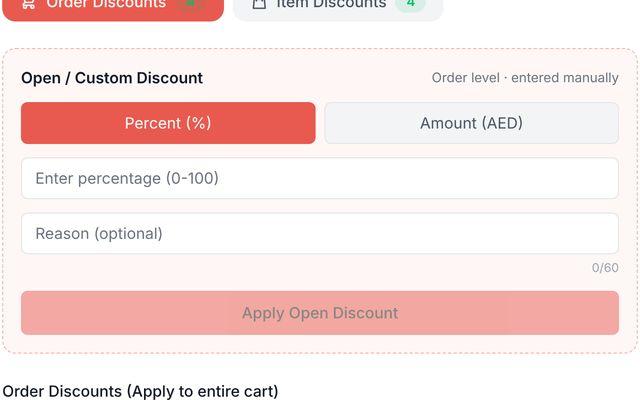
Apply a discount
Take a saved discount, or your own percent or amount, off the whole order before the guest pays.
51 secondsEverydayCashier, Manager