 Academy
Till Academy
Short videos that show each job on Till CloudPOS, with the steps written out underneath. Watch one when you need it, or work through all 49.
49 guides · 40 minutes of video · no sound
49 guides to view
Topic
Role
Level
Your progress
6 of 49 guides
Build your menu
6 guides · 5 min
Add items and categories, change prices, set up options, sizes and photos, mark items sold out and create discounts.
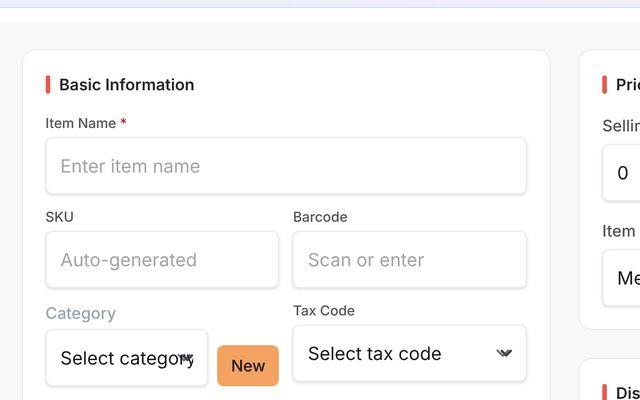
Add a menu item
Create a new item in the Catalog with its category, tax code and price so it shows on the POS.
39 secondsAdvancedManager, Owner
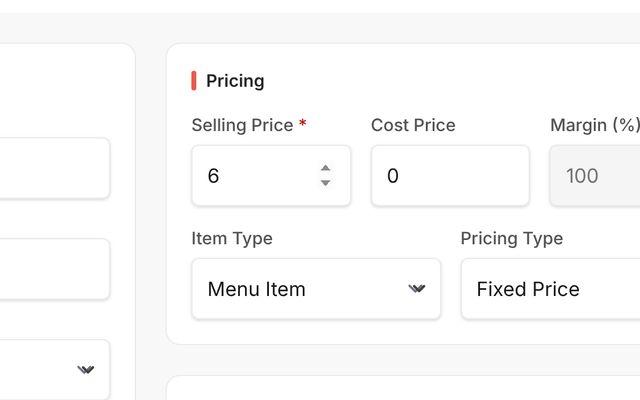
Change an item price
Update the selling price of a menu item in the Catalog and check that the POS shows the new price.
47 secondsEverydayManager, Owner
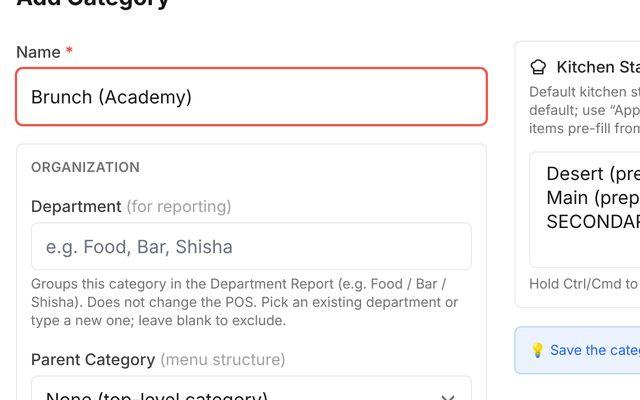
Create a category
Add a new category in the Catalog, such as Brunch, so its items get their own tab on the POS.
47 secondsAdvancedManager, Owner
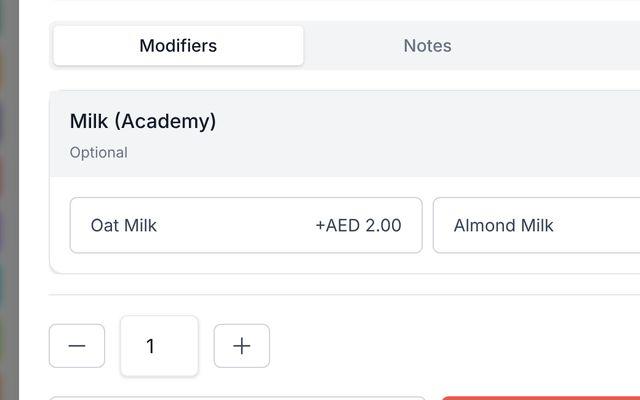
Add options to an item
Attach a modifier group, such as a choice of milk, so staff are asked for the option every time the item is ordered.
1 minuteAdvancedManager, Owner
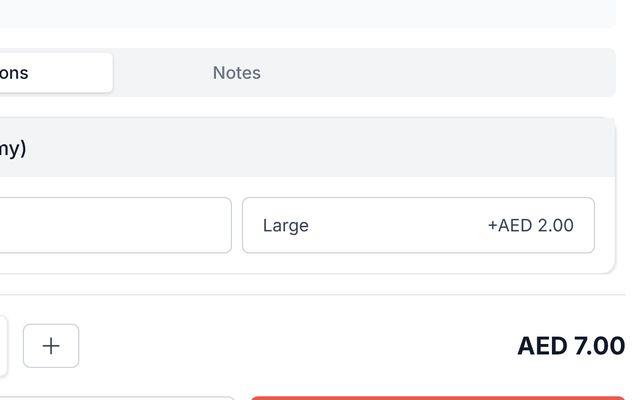
Add sizes to an item
Give one item several sizes, such as Small and Large, each with its own price on top of the base price.
1 minuteAdvancedManager, Owner
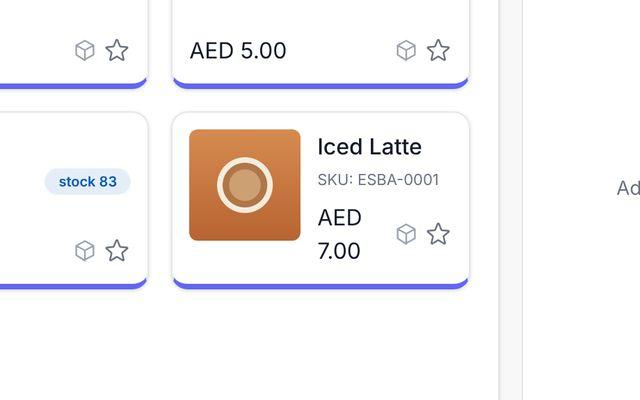
Add an item photo
Upload a photo to a menu item from its edit form, so staff can spot it faster on the POS.
51 secondsEverydayManager, Owner