 Academy
Add sizes to an item
Give one item several sizes, such as Small and Large, each with its own price on top of the base price.
- 1 minute
- 12 steps
- Advanced
- For managers and owners
12 steps · no soundFirst: Find the item
Steps
Tap a step to play the video from that point.
About this task
Sizes save you from making two menu items for the same drink. One item, Iced Latte, can be sold as Small or Large, and the POS asks which one each time.
Sizes are variations. A variation type, such as Size, is created once under Catalog > Variations with its options. On the item you choose the type and set a price for each option.
The price you type is added to the item’s base price. With a base price of AED 7.00, Small at 0 stays AED 7.00 and Large at 2 becomes AED 9.00.
Good to know
- Names come from the variation type
- On the item you can only change the prices. To rename an option, edit the variation type under Catalog > Variations.
- Need only some of the options?
- A variation type brings all of its options to the item. If an item needs a shorter list, create a separate variation type with just those options.
Details
- Topic
- Build your menu
- Level
- Advanced. For managers and for setting up.
- Video
- 1 minute, no sound, captions on screen
- Last checked
- , against Till CloudPOS
Related guides
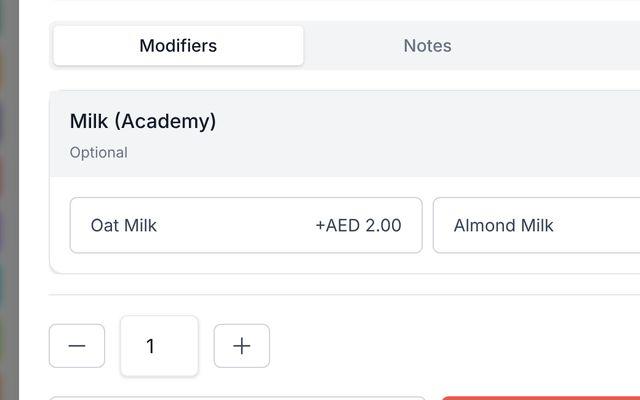
Add options to an item
Attach a modifier group, such as a choice of milk, so staff are asked for the option every time the item is ordered.
1 minuteAdvancedManager, Owner
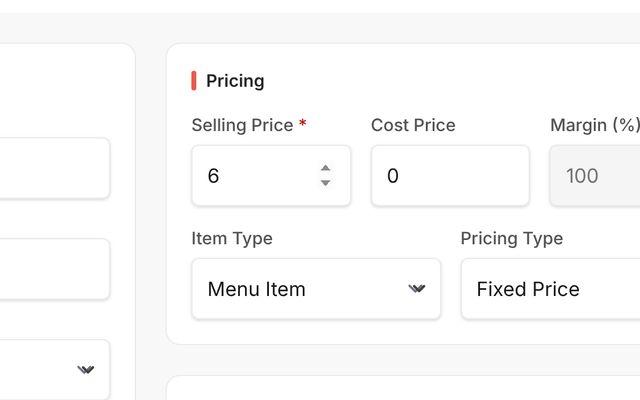
Change an item price
Update the selling price of a menu item in the Catalog and check that the POS shows the new price.
47 secondsEverydayManager, Owner
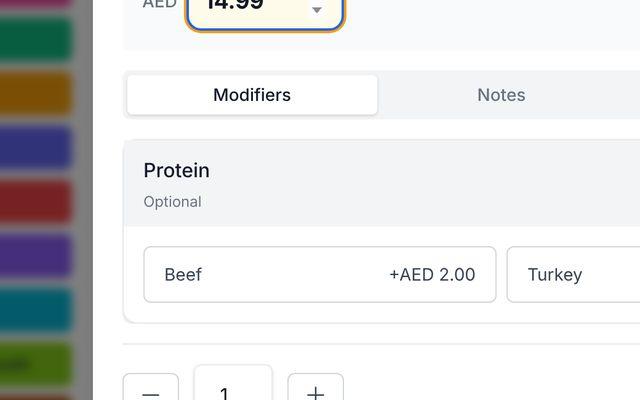
Add item options and notes
Choose an item’s options, add a note for an allergy or request, and add a note for the whole order.
47 secondsBasicsCashier, Waiter