 Academy
Add item options and notes
Choose an item’s options, add a note for an allergy or request, and add a note for the whole order.
- 47 seconds
- 9 steps
- Basics
- For cashiers and waiters
9 steps · no soundFirst: Tap Takeaway
Steps
Tap a step to play the video from that point.
About this task
Guests change things: oat milk, no onions, sauce on the side. Options and notes put those requests on the kitchen ticket in writing, so nobody has to remember them.
Options are set up on the item in the back office and can add to the price. Notes are free text and do not change the price. When an option exists for what the guest wants, use it: it reads clearly on the ticket and is charged correctly.
For an allergy, type the note and tell the kitchen as well. A line on a ticket is easy to miss at a busy pass.
Good to know
- Item note or order note
- An item note is about one item, such as no onions on one burger. An order note is about everything, such as bring all the food together.
- Required choices
- Some option groups must be answered before the item can be added. Pick one in each required group, then tap Add to Order.
- Read it back
- The chosen options show under the item name in the cart. Read them back to the guest before you send the order.
Details
- Topic
- Take orders
- Level
- Basics. Learn these on your first day.
- Video
- 47 seconds, no sound, captions on screen
- Last checked
- , against Till CloudPOS
Related guides

Take a dine-in order
Seat guests at a table, send their order to the kitchen and take payment when they are ready to leave.
1 minuteBasicsCashier, Waiter
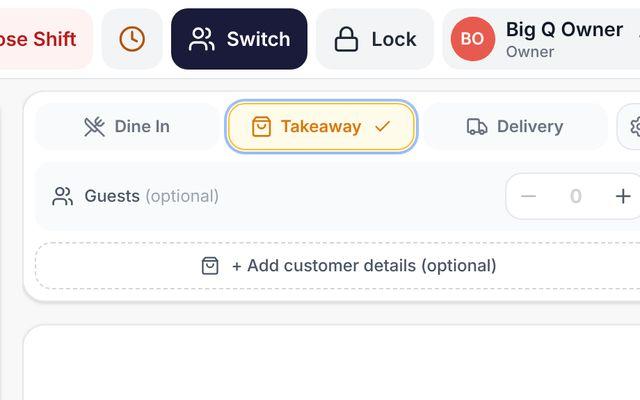
Take a takeaway order
Ring up a counter order, fix quantities in the cart and take cash, from the first tap to the receipt.
47 secondsBasicsCashier, Waiter
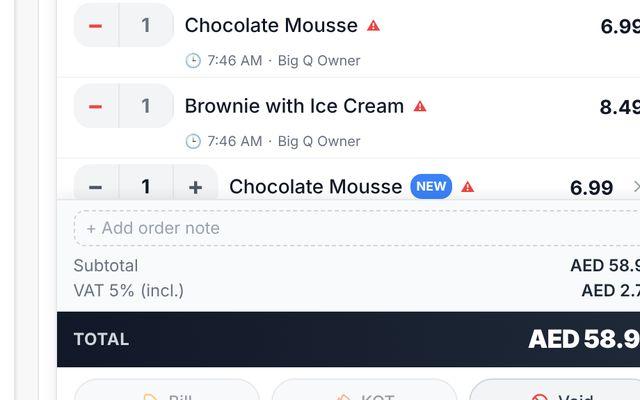
Add a second round to a table
Add more items to a table’s open order and send only the new items to the kitchen.
39 secondsBasicsWaiter