 Academy
Add options to an item
Attach a modifier group, such as a choice of milk, so staff are asked for the option every time the item is ordered.
- 1 minute
- 12 steps
- Advanced
- For managers and owners
12 steps · no soundFirst: Open the Modifiers tab
Steps
Tap a step to play the video from that point.
About this task
Options are the choices that go with an item: the milk in a latte, the sauce with a burger, extra cheese. In Till these are modifier groups. A group has a name, its options, and an extra price for each one.
There are two parts. First create the group on the Modifiers tab of the Catalog, with how many options a guest may pick. Then open the item, go to Customization and tick the group.
From then on, tapping the item on the POS opens the choices before it goes in the cart, and the extra price is added for you.
Good to know
- One group, many items
- A modifier group can be ticked on as many items as you like. Change the group once and every item that uses it follows.
- Ticking saves straight away
- The group is attached to the item the moment you tick it, even before you tap Update Item.
Details
- Topic
- Build your menu
- Level
- Advanced. For managers and for setting up.
- Video
- 1 minute, no sound, captions on screen
- Last checked
- , against Till CloudPOS
Related guides
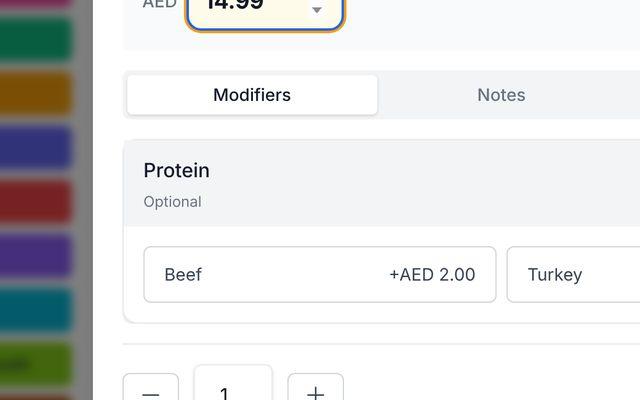
Add item options and notes
Choose an item’s options, add a note for an allergy or request, and add a note for the whole order.
47 secondsBasicsCashier, Waiter
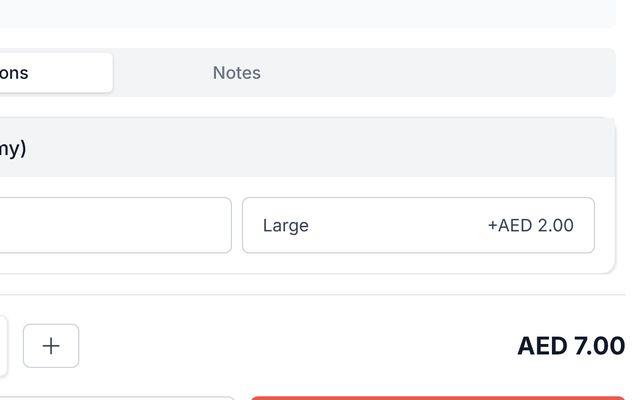
Add sizes to an item
Give one item several sizes, such as Small and Large, each with its own price on top of the base price.
1 minuteAdvancedManager, Owner
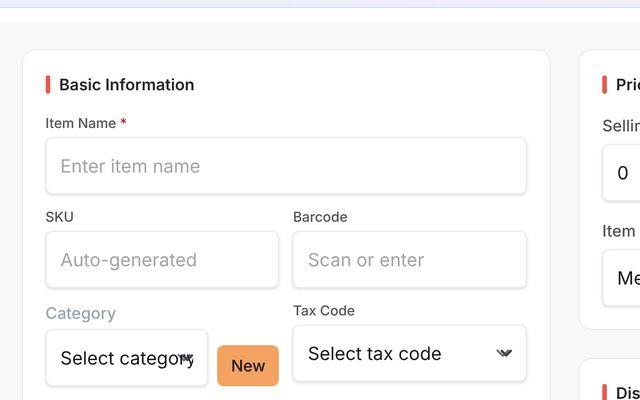
Add a menu item
Create a new item in the Catalog with its category, tax code and price so it shows on the POS.
39 secondsAdvancedManager, Owner