 Academy
Create a category
Add a new category in the Catalog, such as Brunch, so its items get their own tab on the POS.
- 47 seconds
- 9 steps
- Advanced
- For managers and owners
9 steps · no soundFirst: Open the Categories tab
Steps
Tap a step to play the video from that point.
About this task
Categories are the tabs staff tap on the POS to find items: Breakfast, Espresso Bar, Main Course. A clear set of categories is what makes ordering fast.
A category only needs a name. Sort Order decides where its tab sits (lower numbers come first). Parent Category turns it into a sub-category of another one. Department groups categories in the Department report and can be left empty.
A new category starts empty. Put items in it from each item’s edit form, by choosing the category there.
Good to know
- It shows on the POS at once
- A new category appears as a tab on the POS straight away, even before it has items. Create it when you are ready to fill it.
- Banner and icon images
- A category can have a banner and an icon. They can be added after the category is saved, from Edit.
Details
- Topic
- Build your menu
- Level
- Advanced. For managers and for setting up.
- Video
- 47 seconds, no sound, captions on screen
- Last checked
- , against Till CloudPOS
Related guides
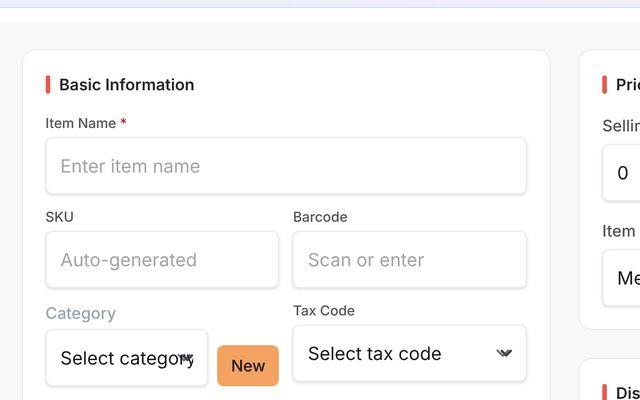
Add a menu item
Create a new item in the Catalog with its category, tax code and price so it shows on the POS.
39 secondsAdvancedManager, Owner
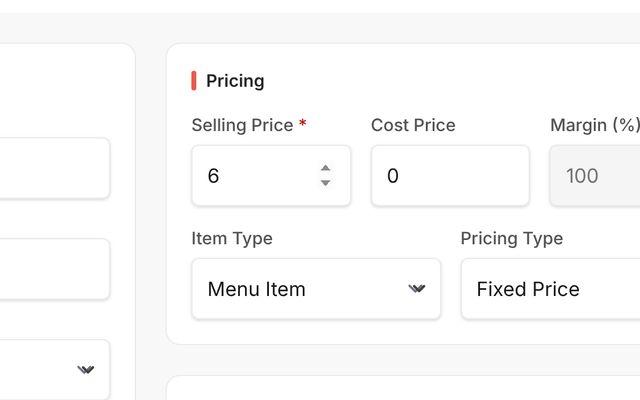
Change an item price
Update the selling price of a menu item in the Catalog and check that the POS shows the new price.
47 secondsEverydayManager, Owner
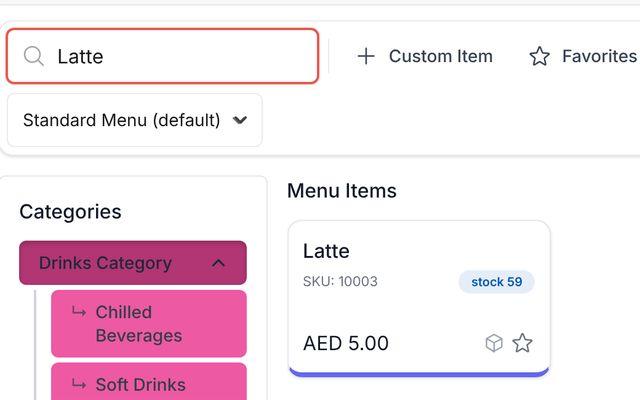
Find items fast with search and Favorites
Search the menu by name and star your best sellers so they are one tap away.
30 secondsBasicsCashier, Waiter