 Academy
Till Academy
Short videos that show each job on Till CloudPOS, with the steps written out underneath. Watch one when you need it, or work through all 49.
49 guides · 40 minutes of video · no sound
49 guides to view
Topic
Role
Level
Your progress
17 of 49 guides
Take payment
1 guide · 1 min
Take cash and card, add tips, split a bill, apply discounts and charge an order to a customer’s account.
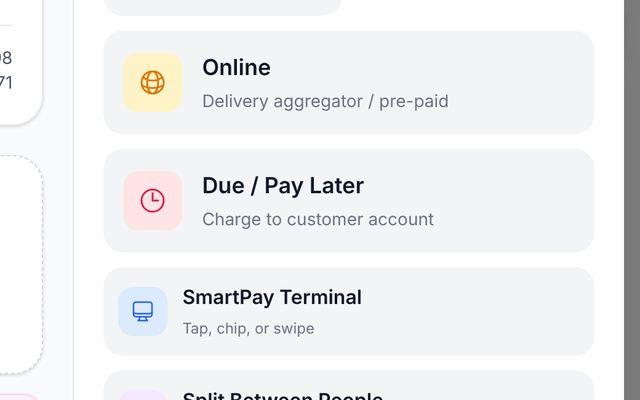
Sell on Pay Later and collect the money
Charge an order to a customer’s account, then record the payment when they settle what they owe.
56 secondsAdvancedCashier, Manager, Owner
Find and fix orders
2 guides · 2 min
Look up past orders, void items or whole orders the kitchen already has, and refund paid orders in full or in part.
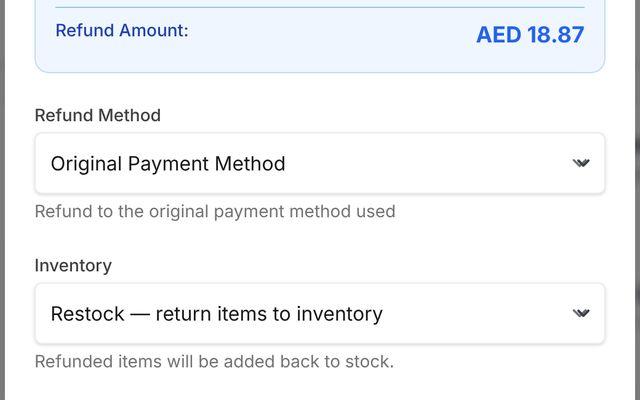
Refund a paid order
Give money back on a paid order, choose how it is refunded, and record the stock and the reason.
47 secondsAdvancedManager, Owner
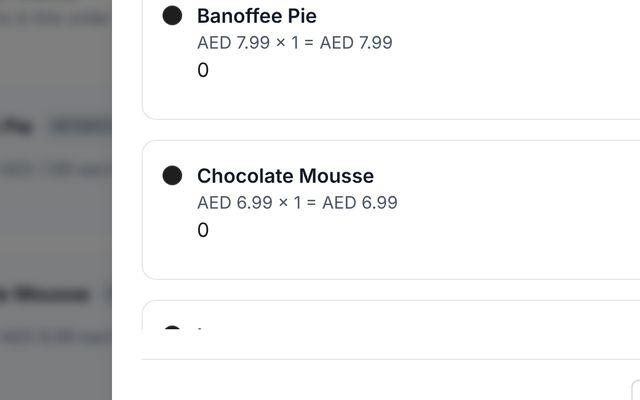
Refund one item
Give money back for part of a paid order: choose the items, how the money goes back and the reason.
47 secondsAdvancedManager, Owner
Build your menu
5 guides · 4 min
Add items and categories, change prices, set up options, sizes and photos, mark items sold out and create discounts.
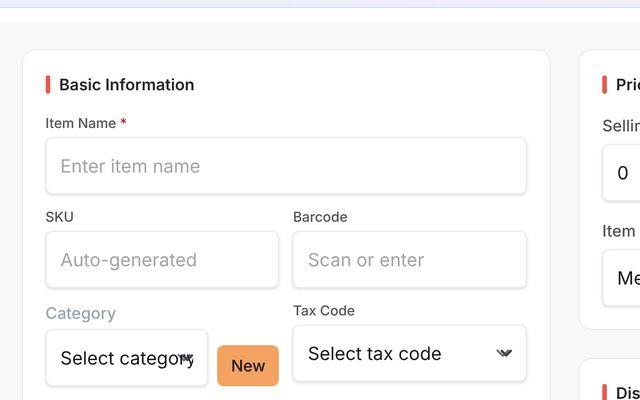
Add a menu item
Create a new item in the Catalog with its category, tax code and price so it shows on the POS.
39 secondsAdvancedManager, Owner
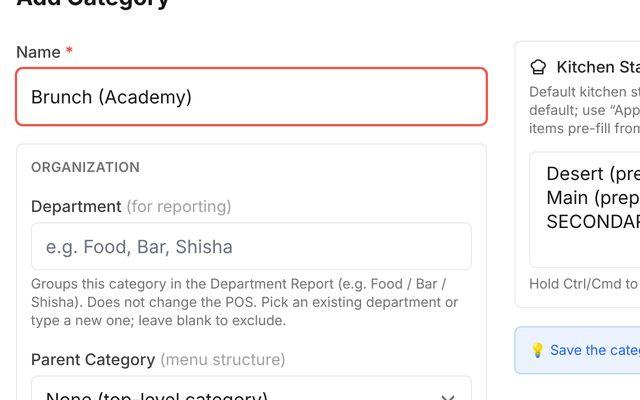
Create a category
Add a new category in the Catalog, such as Brunch, so its items get their own tab on the POS.
47 secondsAdvancedManager, Owner
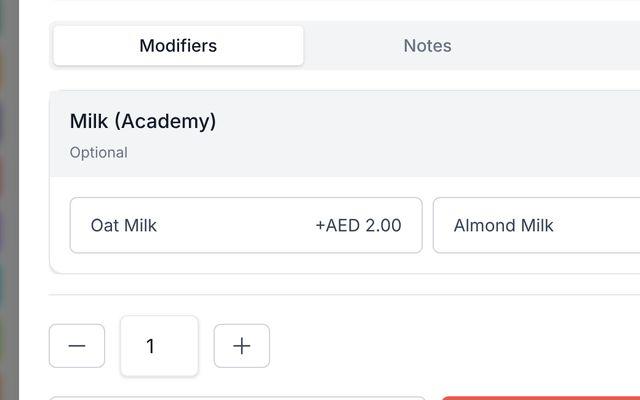
Add options to an item
Attach a modifier group, such as a choice of milk, so staff are asked for the option every time the item is ordered.
1 minuteAdvancedManager, Owner
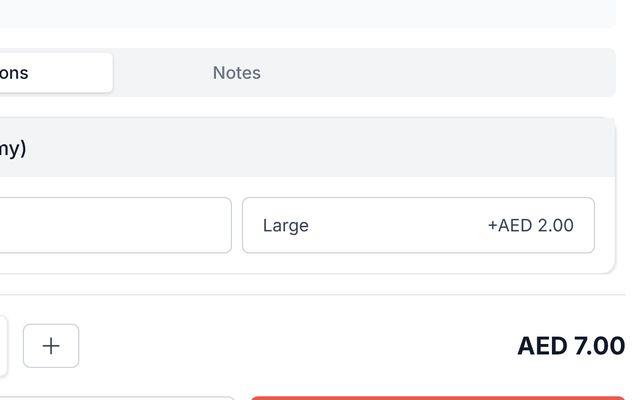
Add sizes to an item
Give one item several sizes, such as Small and Large, each with its own price on top of the base price.
1 minuteAdvancedManager, Owner
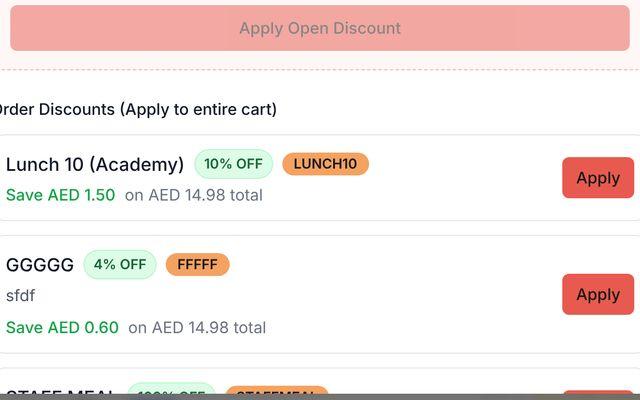
Create a discount
Set up a ready-made discount, such as 10% off the bill, that cashiers can apply from the POS.
51 secondsAdvancedManager, Owner
Staff, tables and QR codes
5 guides · 4 min
Add staff and decide what each role can do, create tables and floors, arrange the floor plan and make table QR codes.
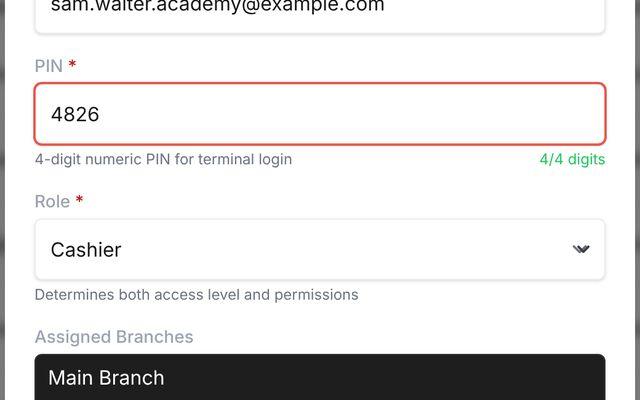
Add a staff member
Create a user with their own POS PIN, role and branch, so they can sign in and work under their own name.
43 secondsAdvancedManager, Owner
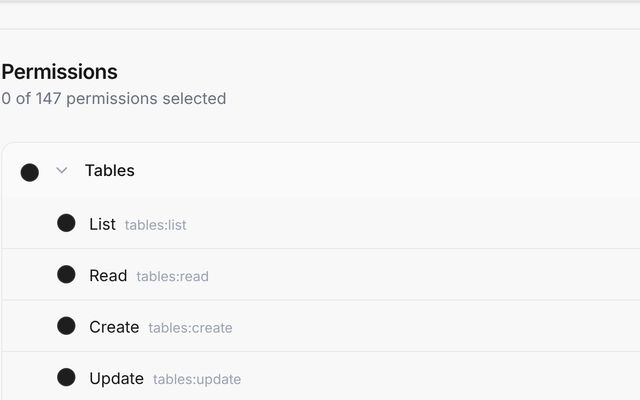
Set role permissions
Choose what a role can do in Till by ticking its permissions, then save so everyone with that role follows.
39 secondsAdvancedOwner
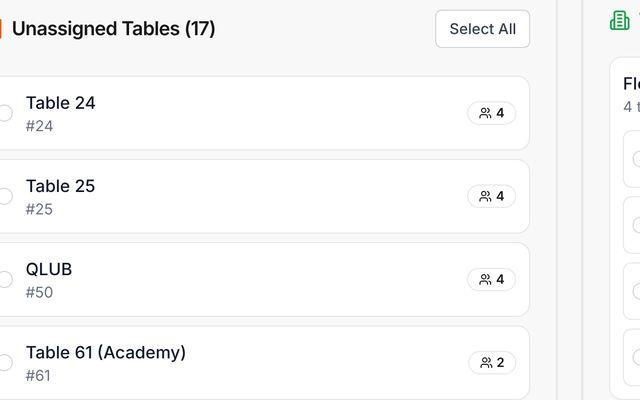
Add tables and floors
Create a table with its number, name and seats in Table Management, then put it on the right floor.
1 minuteAdvancedManager, Owner
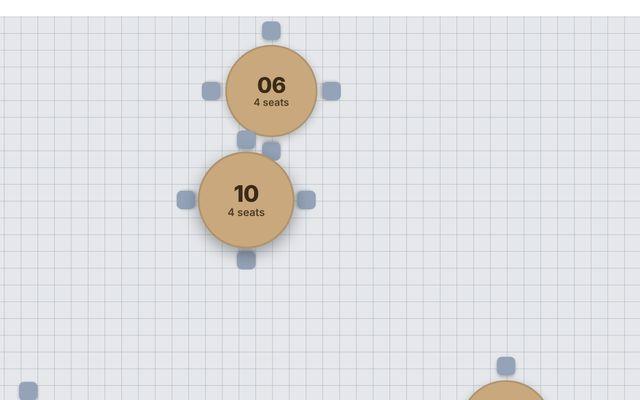
Arrange the floor plan
Move, resize and arrange the tables on each floor so the plan on the POS matches your room.
51 secondsAdvancedManager, Owner
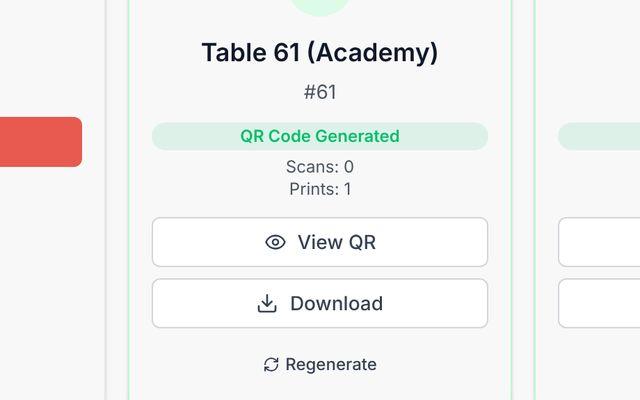
Make table QR codes
Switch on QR ordering, then generate, view and download the QR code for each table.
39 secondsAdvancedManager, Owner
Kitchen and stock
2 guides · 2 min
Work tickets on the Kitchen Display, count your stock and record deliveries from suppliers.
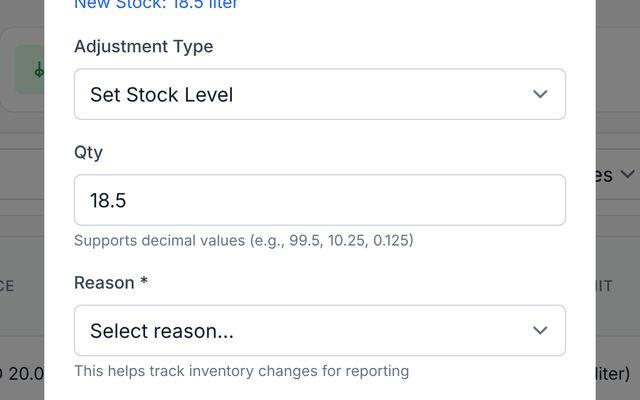
Count and adjust stock
After a stock count, set an item to the amount you counted, with a reason, and see the change on record.
56 secondsAdvancedManager, Owner
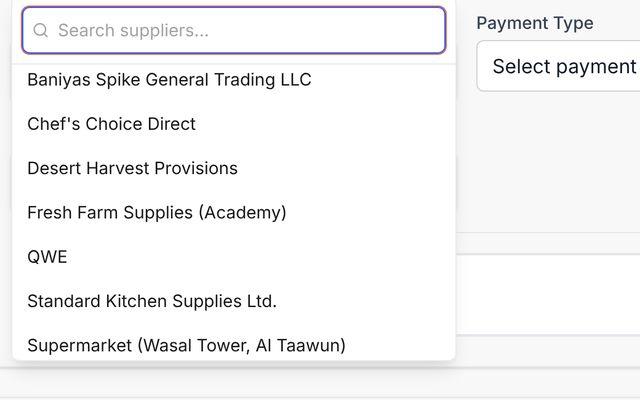
Record a purchase
Enter a supplier delivery with its invoice number, items, quantities and costs, so stock goes up straight away.
1 minuteAdvancedManager, Owner
Read your reports
2 guides · 2 min
Check the day’s sales, find your best sellers, review voids and refunds, and read the Z report before you close.
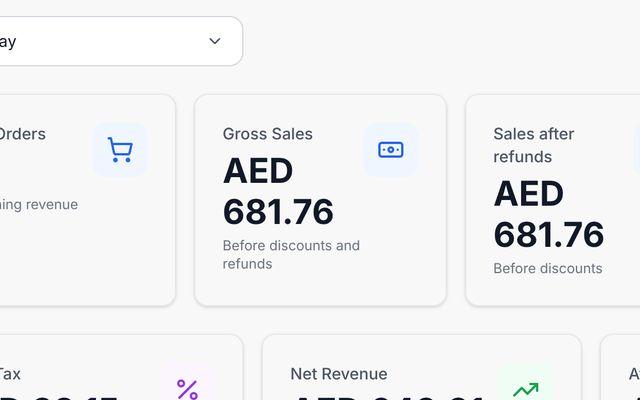
Check today’s sales
Open the Sales Summary to see orders, gross sales, net revenue and how guests paid, for any date range.
47 secondsAdvancedManager, Owner
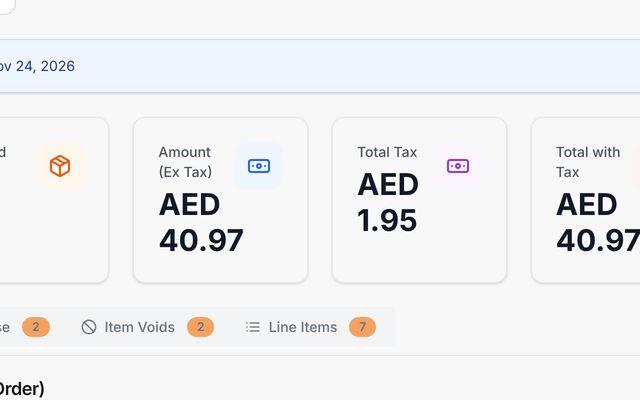
Check voids and refunds
Read the Voids and Refunds reports to see what was cancelled or paid back, by whom and why.
1 minuteAdvancedManager, Owner