 Academy
Make table QR codes
Switch on QR ordering, then generate, view and download the QR code for each table.
- 39 seconds
- 7 steps
- Advanced
- For managers and owners
7 steps · no soundFirst: Settings > QR Ordering
Steps
Tap a step to play the video from that point.
About this task
A table QR code lets guests scan with their phone to see the menu, order and pay. Each code belongs to one table, so orders from it arrive on that table on the POS.
First decide what guests may do. In Settings > QR Ordering, switch on Enable QR Ordering and choose the default mode: Order & Pay, Pay Only, or Both Modes.
Then open Table Management > QR Codes. Generate the codes, view one to check it, and download or print it for the table.
Good to know
- All tables at once
- Generate All makes a code for every table. Export PDF and Export ZIP save them together for printing.
- See whether a code is used
- Each code shows how many times it was scanned and printed.
If something goes wrong
- A table has no View QR button
- Its code has not been made yet. Tap Generate QR on that table first.
Details
- Level
- Advanced. For managers and for setting up.
- Video
- 39 seconds, no sound, captions on screen
- Last checked
- , against Till CloudPOS
Related guides
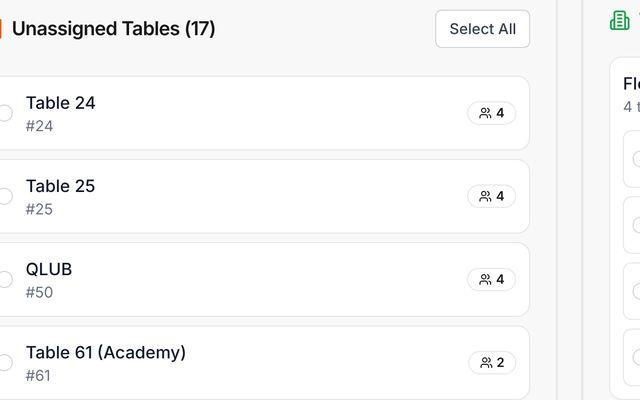
Add tables and floors
Create a table with its number, name and seats in Table Management, then put it on the right floor.
1 minuteAdvancedManager, Owner

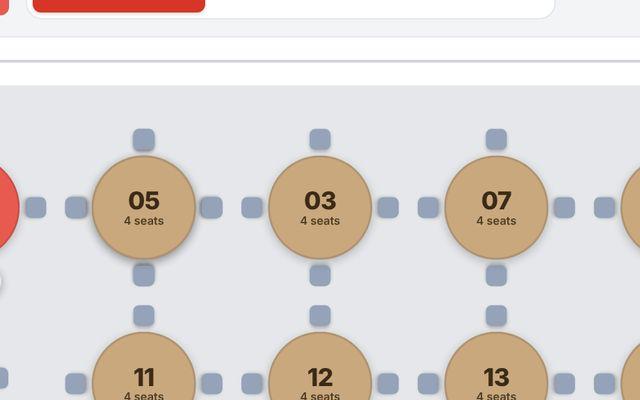
Arrange the floor plan
Move, resize and arrange the tables on each floor so the plan on the POS matches your room.
51 secondsAdvancedManager, Owner
Take a dine-in order
Seat guests at a table, send their order to the kitchen and take payment when they are ready to leave.
1 minuteBasicsCashier, Waiter