 Academy
Use the Kitchen Display
Work tickets on the kitchen screen: FIRE to start cooking, Ready when it is done, BUMP when it is served.
- 47 seconds
- 9 steps
- Everyday
- For kitchen staff and managers
9 steps · no soundFirst: Open Kitchen Display
Steps
Tap a step to play the video from that point.
About this task
The Kitchen Display shows every order sent from the POS as a ticket, with the order type, the items, any allergens and how long it has been waiting. The kitchen keeps it open all day.
A ticket moves through three taps. FIRE starts cooking and turns the top of the ticket blue. Ready tells the floor the food can be collected. BUMP marks it served and takes it off the live screen.
Nothing is lost when a ticket is bumped. PAST ORDERS shows the finished tickets, and the arrow button on a ticket brings it back if it was bumped by mistake.
Good to know
- Counters at the top
- Pending, Cooking and Ready show how many items are in each stage, so the pass can see the load at a glance.
- Voided orders
- An order voided on the POS shows on the kitchen screen in red as ORDER VOIDED, so nobody keeps cooking it.
If something goes wrong
- A yellow banner says tickets may not have printed
- No kitchen printer confirmed those tickets. Check the printer and reprint if needed, then tap Mark all as received.
Details
- Topic
- Kitchen and stock
- Level
- Everyday. You will use these on most shifts.
- Video
- 47 seconds, no sound, captions on screen
- Last checked
- , against Till CloudPOS
Related guides
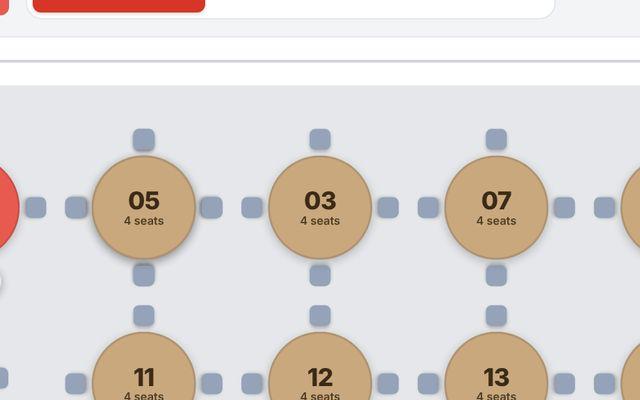
Take a dine-in order
Seat guests at a table, send their order to the kitchen and take payment when they are ready to leave.
1 minuteBasicsCashier, Waiter
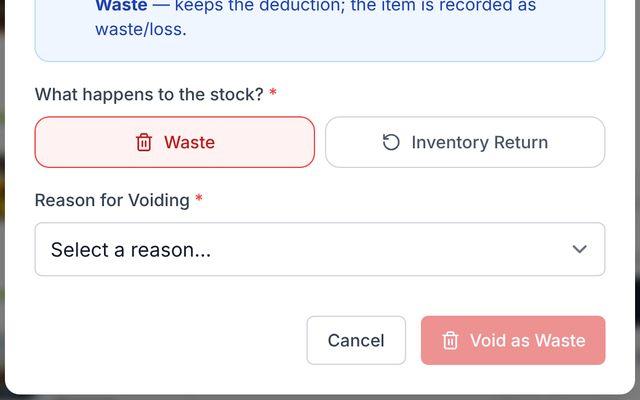
Void a sent item
Remove an item the kitchen already has, record what happened to it, and get a manager’s approval.
43 secondsEverydayCashier, Waiter, Manager
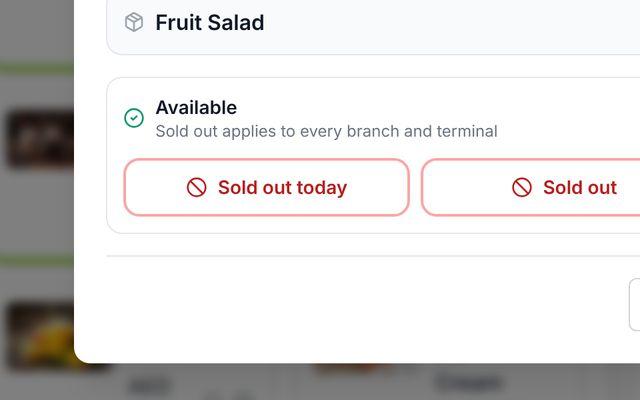
Mark an item sold out
Stop staff selling an item the kitchen has run out of, for the rest of today or until you switch it back on.
47 secondsEverydayCashier, Manager