 Academy
Count and adjust stock
After a stock count, set an item to the amount you counted, with a reason, and see the change on record.
- 56 seconds
- 11 steps
- Advanced
- For managers and owners
11 steps · no soundFirst: Open Inventory and find the item
Steps
Tap a step to play the video from that point.
About this task
The stock level in Till moves by itself with sales and purchases, but shelves and screens drift apart: spills, over-pouring, a delivery nobody entered. A regular count puts the two back in line.
In Inventory, find the item and tap Update Stock. After a count, choose Set Stock Level and type what you counted. Add Stock and Remove Stock change the level by an amount instead.
Every change needs a reason and is recorded with the person and the time. You can read it back in Audit Logs under the Item Stock area.
Good to know
- Check before you save
- The window shows the current stock and the new stock at the top before you tap Update Stock.
- Deliveries are not adjustments
- When stock arrives from a supplier, record a purchase. It raises the stock and updates the item cost as well.
Details
- Topic
- Kitchen and stock
- Level
- Advanced. For managers and for setting up.
- Video
- 56 seconds, no sound, captions on screen
- Last checked
- , against Till CloudPOS
Related guides
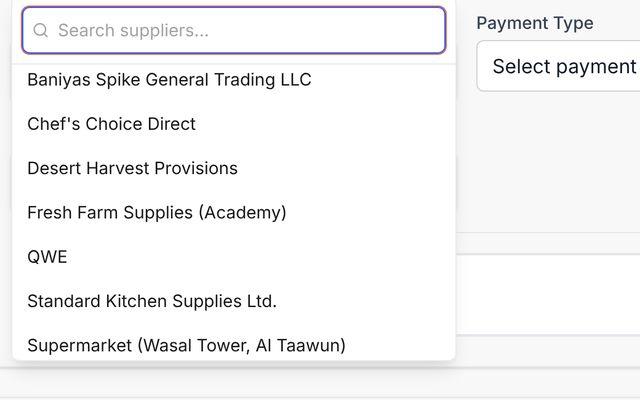
Record a purchase
Enter a supplier delivery with its invoice number, items, quantities and costs, so stock goes up straight away.
1 minuteAdvancedManager, Owner
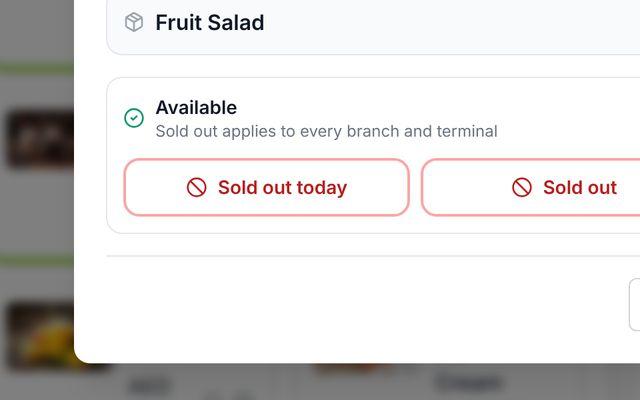
Mark an item sold out
Stop staff selling an item the kitchen has run out of, for the rest of today or until you switch it back on.
47 secondsEverydayCashier, Manager
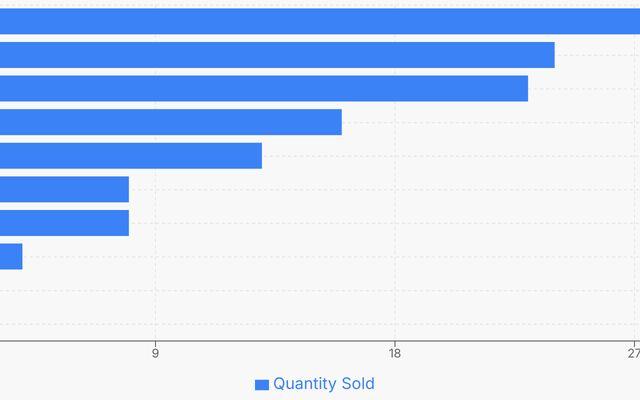
Find your best sellers
Read the Top Products report to see which items sell the most, by quantity and by revenue.
51 secondsEverydayManager, Owner