 Academy
Record a purchase
Enter a supplier delivery with its invoice number, items, quantities and costs, so stock goes up straight away.
- 1 minute
- 12 steps
- Advanced
- For managers and owners
12 steps · no soundFirst: Open Purchases, tap New Purchase
Steps
Tap a step to play the video from that point.
About this task
When a delivery arrives, record it as a purchase. Stock goes up by what you received, and the cost you paid updates the item’s average cost, which feeds your recipe costs.
Choose the supplier, type the invoice number from their paperwork, then add a line for each product with the quantity received and the cost of one unit. Till works out the line total and tax.
Save & Process receives the stock now. Save as Draft keeps the purchase for later without changing stock.
Good to know
- New supplier?
- Add them first with the Suppliers button on the Purchases page. Then they appear in the Supplier list.
- What you owe
- A received purchase shows in the list with its total and the amount still due to the supplier.
If something goes wrong
- It says the invoice already exists
- The same invoice number cannot be entered twice for one supplier. Check the list: the delivery may already be recorded.
- Entered by mistake
- Open the row menu on the purchase and choose Void Receipt, with a reason. The stock it added is taken back.
Details
- Topic
- Kitchen and stock
- Level
- Advanced. For managers and for setting up.
- Video
- 1 minute, no sound, captions on screen
- Last checked
- , against Till CloudPOS
Related guides
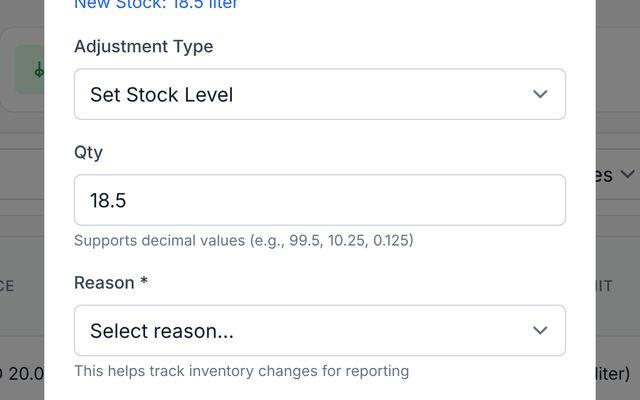
Count and adjust stock
After a stock count, set an item to the amount you counted, with a reason, and see the change on record.
56 secondsAdvancedManager, Owner
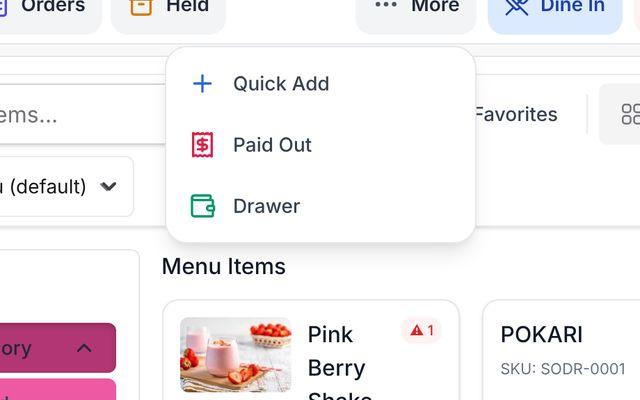
Record cash in and out
Write down a float top-up or cash paid out of the drawer, so the cash count still matches at the end of the day.
1 minuteEverydayCashier, Manager
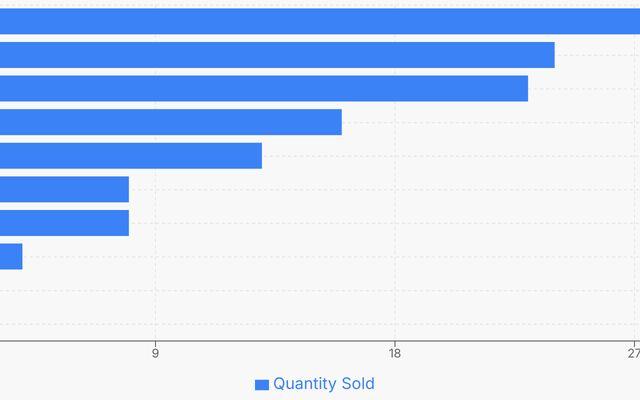
Find your best sellers
Read the Top Products report to see which items sell the most, by quantity and by revenue.
51 secondsEverydayManager, Owner