 Academy
Till Academy
Short videos that show each job on Till CloudPOS, with the steps written out underneath. Watch one when you need it, or work through all 49.
49 guides · 40 minutes of video · no sound
49 guides to view
Topic
Role
Level
Your progress
5 of 49 guides
Staff, tables and QR codes
5 guides · 4 min
Add staff and decide what each role can do, create tables and floors, arrange the floor plan and make table QR codes.
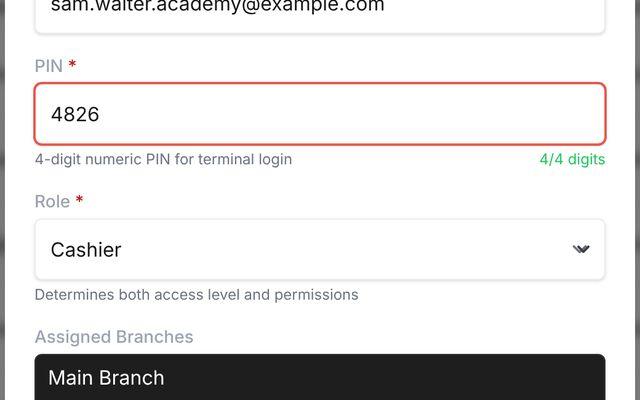
Add a staff member
Create a user with their own POS PIN, role and branch, so they can sign in and work under their own name.
43 secondsAdvancedManager, Owner
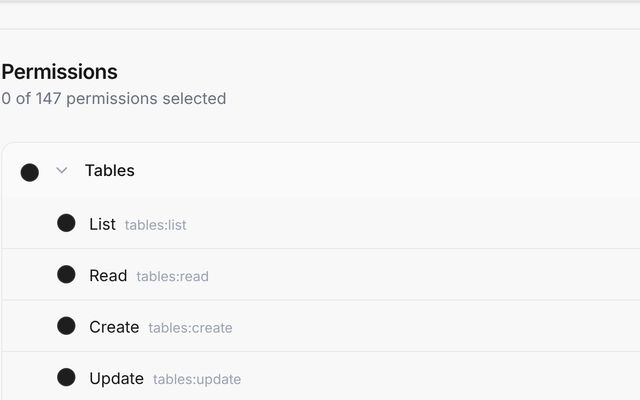
Set role permissions
Choose what a role can do in Till by ticking its permissions, then save so everyone with that role follows.
39 secondsAdvancedOwner
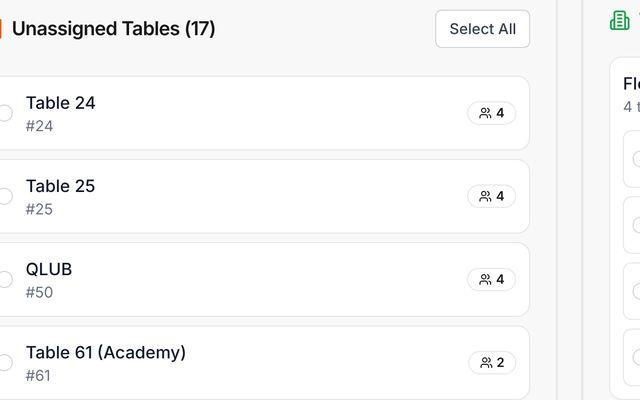
Add tables and floors
Create a table with its number, name and seats in Table Management, then put it on the right floor.
1 minuteAdvancedManager, Owner
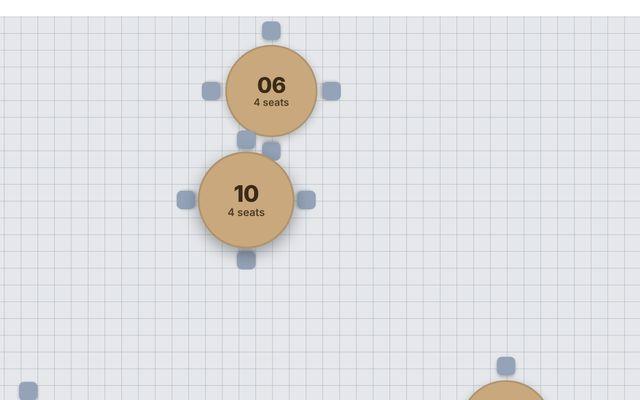
Arrange the floor plan
Move, resize and arrange the tables on each floor so the plan on the POS matches your room.
51 secondsAdvancedManager, Owner
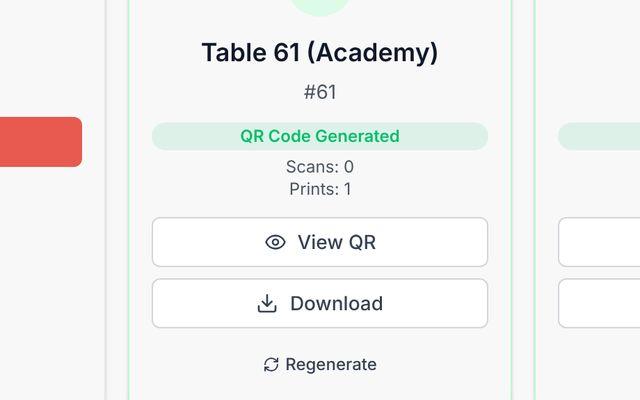
Make table QR codes
Switch on QR ordering, then generate, view and download the QR code for each table.
39 secondsAdvancedManager, Owner