 Academy
Set role permissions
Choose what a role can do in Till by ticking its permissions, then save so everyone with that role follows.
- 39 seconds
- 7 steps
- Advanced
- For owners
7 steps · no soundFirst: Roles live in Settings > Roles
Steps
Tap a step to play the video from that point.
About this task
A role is a set of permissions: what a waiter, a cashier or a host may see and do. Staff get their permissions from the role you give them, so changing a role changes it for everyone who has it.
Roles live in Settings > Roles. Till comes with built-in roles, and Create Role adds your own, for example a Host who can only see the tables.
Permissions are grouped by area, such as Orders, Tables and Reports, and each group shows how many are switched on. Use the search box to find one quickly.
Good to know
- Give the least that works
- Start a new role with few permissions and add more when someone needs them. Refunds, voids and discounts are the ones to hand out carefully.
- Change built-in roles with care
- Built-in roles can be edited too. A change there reaches every person with that role as soon as you save.
Details
Related guides
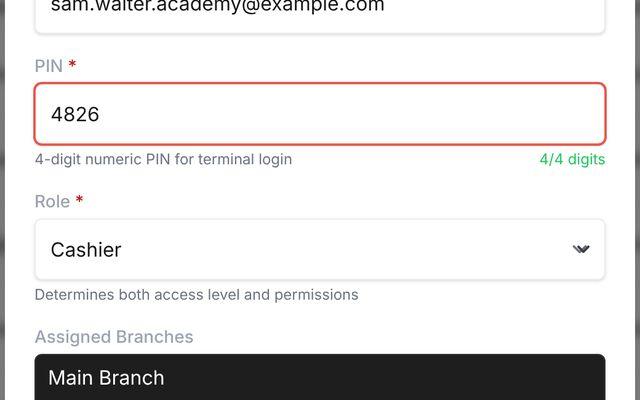
Add a staff member
Create a user with their own POS PIN, role and branch, so they can sign in and work under their own name.
43 secondsAdvancedManager, Owner
Switch user and clock in
Hand the till to the next person with their own PIN, and clock in or out so your hours are recorded.
47 secondsBasicsCashier, Waiter, Manager
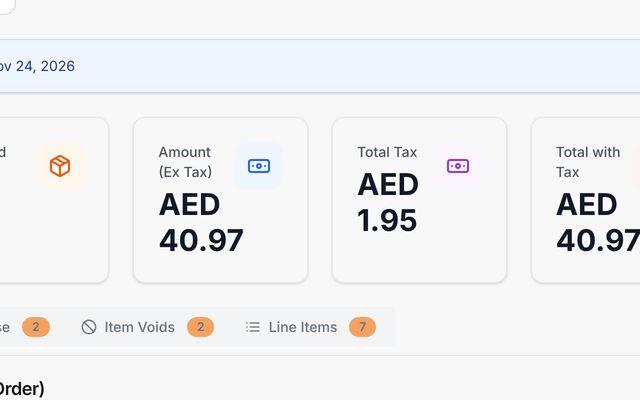
Check voids and refunds
Read the Voids and Refunds reports to see what was cancelled or paid back, by whom and why.
1 minuteAdvancedManager, Owner