 Academy
Switch user and clock in
Hand the till to the next person with their own PIN, and clock in or out so your hours are recorded.
- 47 seconds
- 9 steps
- Basics
- For cashiers, waiters and managers
9 steps · no soundFirst: This shows who is using the till
Steps
Tap a step to play the video from that point.
About this task
Every order is saved under the name of the person signed in on the till. When someone else takes over, they switch to their own name first, so sales, voids and discounts are recorded against the right person.
Switching does not close anything. Open orders stay where they are and the shift keeps running. The next person taps Switch, types their own PIN, and carries on.
The clock icon next to Switch is separate. It records working hours: clock in when you start, clock out when you leave.
Good to know
- Never share a PIN
- Reports show who rang up, voided and discounted each order. If two people use one PIN, nobody can tell who did what.
- Lock button
- A Lock button also shows next to Switch when the owner turns on Terminal Lock in Settings.
If something goes wrong
- The PIN is not accepted
- Check you are typing your own POS PIN. If it still fails, ask the owner or a manager to check or reset it on the Users page.
Details
- Level
- Basics. Learn these on your first day.
- Video
- 47 seconds, no sound, captions on screen
- Last checked
- , against Till CloudPOS
Related guides
Open your shift
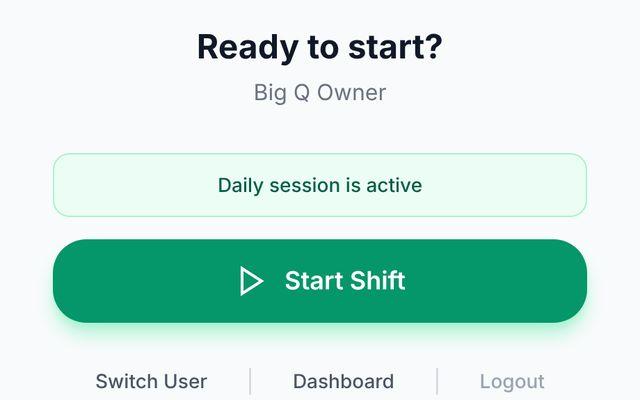
Start your shift on the POS so you can take orders. It takes one tap and no cash count.
35 secondsBasicsCashier, Waiter
Close your shift
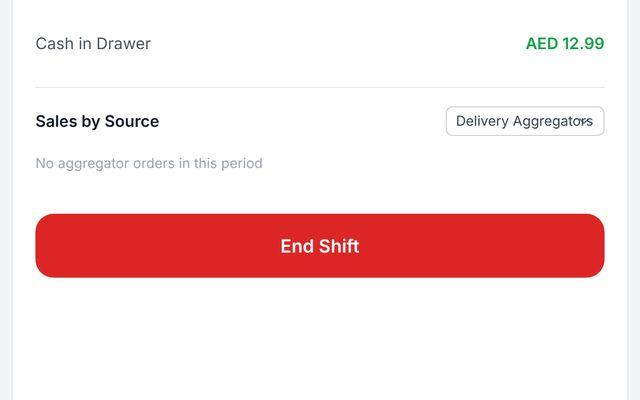
Read your shift report, count the cash you took and close your shift at the end of the day.
35 secondsBasicsCashier, Waiter
Add a staff member
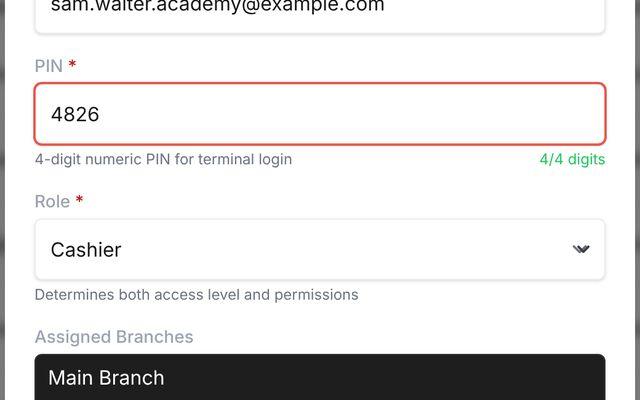
Create a user with their own POS PIN, role and branch, so they can sign in and work under their own name.
43 secondsAdvancedManager, Owner