 Academy
Create a discount
Set up a ready-made discount, such as 10% off the bill, that cashiers can apply from the POS.
- 51 seconds
- 10 steps
- Advanced
- For managers and owners
10 steps · no soundFirst: Open Discounts, tap Create New Rule
Steps
Tap a step to play the video from that point.
About this task
A ready-made discount gives staff one clear choice at the counter instead of typing a percentage each time. It also gives the discount a name, so you can see how often it was used.
A rule needs a name, a scope and a value. Order Level takes money off the whole bill and Item Level takes it off chosen items. The value is a percentage or a fixed amount in AED. A short code is optional and helps staff find the rule.
Two switches decide how it behaves. Active makes the rule usable. Auto Apply adds it to orders by itself, so leave it off when staff should choose.
Good to know
- Limits and conditions
- A rule can have a usage limit, and the Advanced Conditions tab holds further conditions for when it applies.
- End a promotion without deleting it
- Switch Active off. The rule stays in the list and can be switched on again next time.
Details
- Topic
- Build your menu
- Level
- Advanced. For managers and for setting up.
- Video
- 51 seconds, no sound, captions on screen
- Last checked
- , against Till CloudPOS
Related guides
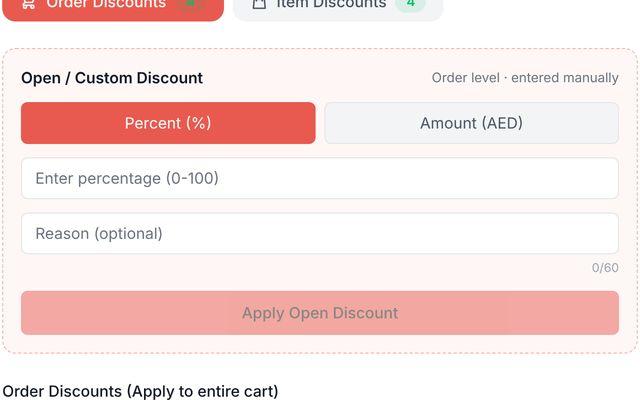
Apply a discount
Take a saved discount, or your own percent or amount, off the whole order before the guest pays.
51 secondsEverydayCashier, Manager
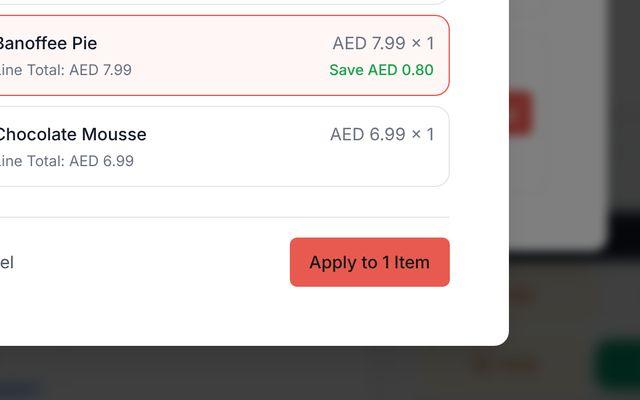
Discount one item
Take money off a single item with a ready-made item discount, and leave the rest of the order at full price.
51 secondsEverydayCashier, Waiter, Manager
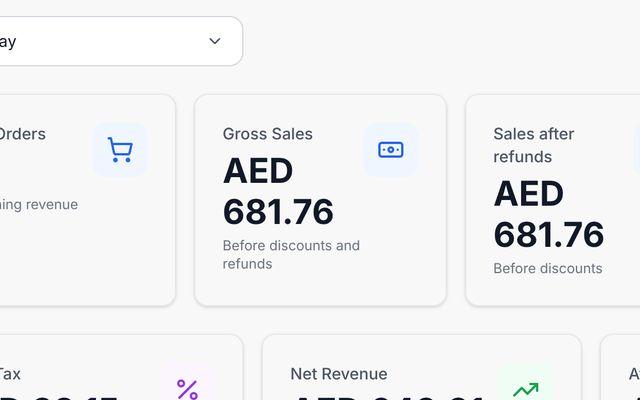
Check today’s sales
Open the Sales Summary to see orders, gross sales, net revenue and how guests paid, for any date range.
47 secondsAdvancedManager, Owner