 Academy
Add an item photo
Upload a photo to a menu item from its edit form, so staff can spot it faster on the POS.
- 51 seconds
- 10 steps
- Everyday
- For managers and owners
10 steps · no soundFirst: Find the item
Steps
Tap a step to play the video from that point.
About this task
A photo helps new staff find items by sight, and makes the item look right wherever your menu is shown with pictures.
Open the item’s edit form and scroll to Item Image. Tap Browse Files, choose the photo and tap Upload Image, then Update Item. Till resizes the photo for the different screens it appears on.
Use JPG, PNG or WebP files up to 5 MB. Square photos of about 1200 by 1200 pixels look best.
Good to know
- Replace or remove it
- Open the edit form again and use Replace Image or Delete under the photo.
- Photos on the POS
- Item photos show on the POS when images are switched on in the POS Display settings.
Details
- Topic
- Build your menu
- Level
- Everyday. You will use these on most shifts.
- Video
- 51 seconds, no sound, captions on screen
- Last checked
- , against Till CloudPOS
Related guides
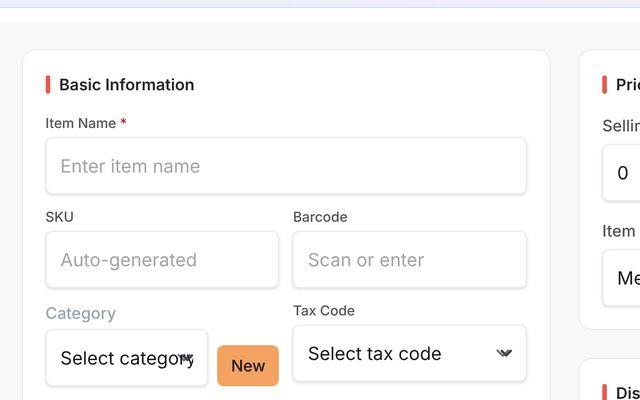
Add a menu item
Create a new item in the Catalog with its category, tax code and price so it shows on the POS.
39 secondsAdvancedManager, Owner
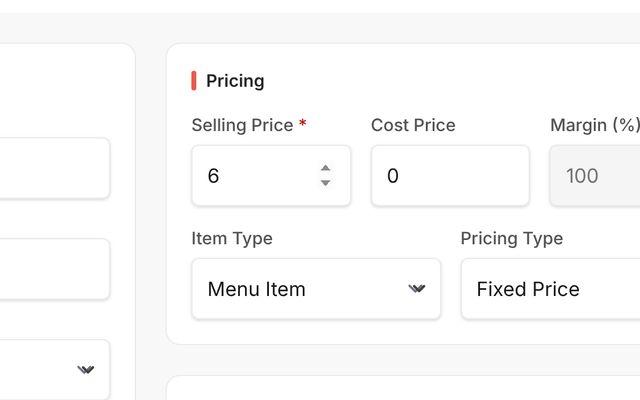
Change an item price
Update the selling price of a menu item in the Catalog and check that the POS shows the new price.
47 secondsEverydayManager, Owner
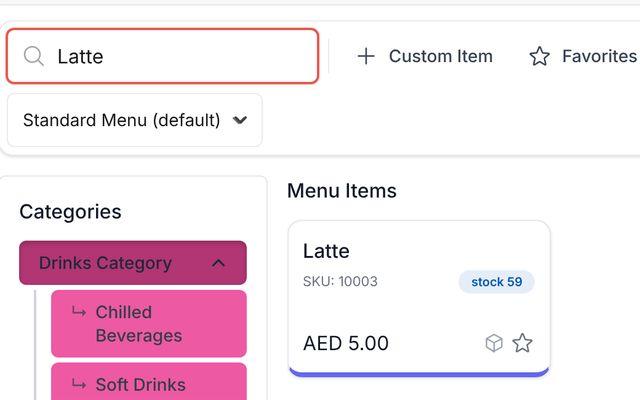
Find items fast with search and Favorites
Search the menu by name and star your best sellers so they are one tap away.
30 secondsBasicsCashier, Waiter