 Academy
Add a customer to an order
Link an order to a guest by phone number or name, so it is saved to their history.
- 56 seconds
- 11 steps
- Everyday
- For cashiers and waiters
11 steps · no soundFirst: Tap Customer
Steps
Tap a step to play the video from that point.
About this task
Adding a customer ties the order to a person. Their past orders are kept in one place, and the order carries their name and phone number on the payment screen.
Search first. Typing a phone number is the quickest and safest way, because two guests can share a name. Only tap New Customer when the guest is not in the list.
Some payments need a customer on the order, for example charging a bill to an account with Due / Pay Later.
Good to know
- Change or remove the customer
- After you pick a customer, the Customer button shows their name. Tap it again to change or remove them before you take payment.
- Loyalty points
- When loyalty is switched on, the points for the order go to the customer you added.
If something goes wrong
- Two customers match the search
- Check the phone number before you tap. Picking the wrong person puts the order in the wrong history.
Details
- Topic
- Take orders
- Level
- Everyday. You will use these on most shifts.
- Video
- 56 seconds, no sound, captions on screen
- Last checked
- , against Till CloudPOS
Related guides
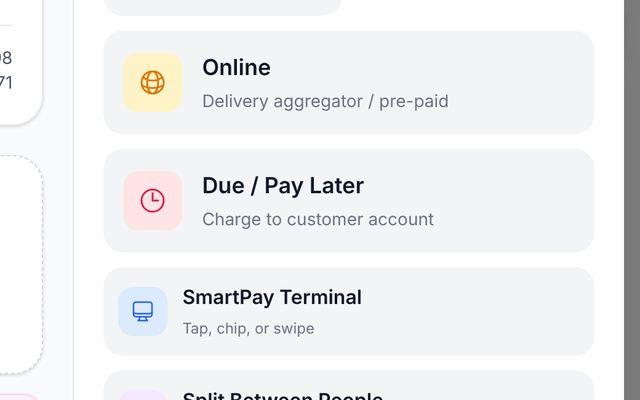
Sell on Pay Later and collect the money
Charge an order to a customer’s account, then record the payment when they settle what they owe.
56 secondsAdvancedCashier, Manager, Owner
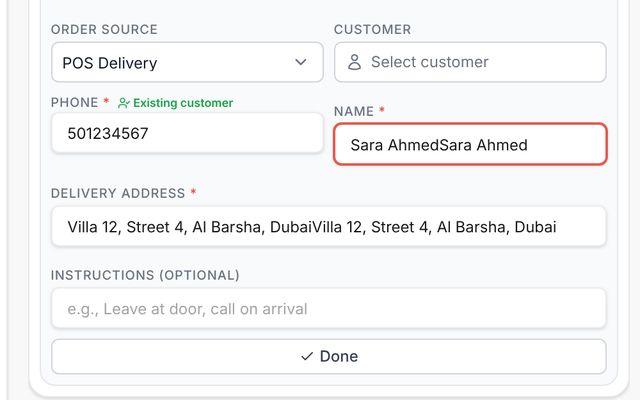
Take a delivery order
Enter the customer’s phone, name and address, add the items, and take payment now or on delivery.
1 minute 12 secondsEverydayCashier
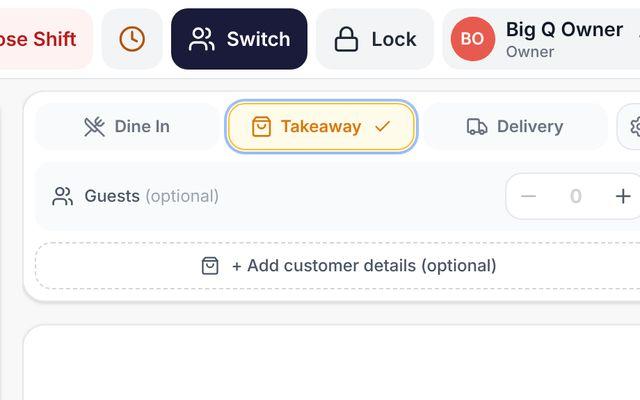
Take a takeaway order
Ring up a counter order, fix quantities in the cart and take cash, from the first tap to the receipt.
47 secondsBasicsCashier, Waiter