 Academy
Print the bill for a table
Print a table’s bill before payment and see on the floor plan which tables are settling up.
- 35 seconds
- 6 steps
- Basics
- For waiters
6 steps · no soundFirst: Tap the table asking for the bill
Steps
Tap a step to play the video from that point.
About this task
Most tables ask to see the bill before they pay. Printing it does not close the order: the table stays open, so you can still add an item, split the bill or take payment.
Once the bill is printed, the table turns teal on the floor plan and is counted under Bill Printed. The whole team can see which tables are about to pay and which are still eating.
Check the order before you print. If something is missing, you have to add it and print again, and the guests will notice the total change.
Good to know
- Taking payment
- When the guests are ready, tap the teal table and tap Pay.
- Minimum spend
- If the table has a minimum spend and the bill is below it, the POS will not take payment. Tell the guests when you bring the bill.
- Paying separately
- If the guests want to pay their own shares, use Split Between People when you take payment.
If something goes wrong
- The print window opens but nothing prints
- Check that the bill printer is the one picked in the print window, that it is switched on and that it has paper. The order is still open, so tap Bill again.
Details
- Topic
- Run your tables
- For
- Waiter
- Level
- Basics. Learn these on your first day.
- Video
- 35 seconds, no sound, captions on screen
- Last checked
- , against Till CloudPOS
Related guides
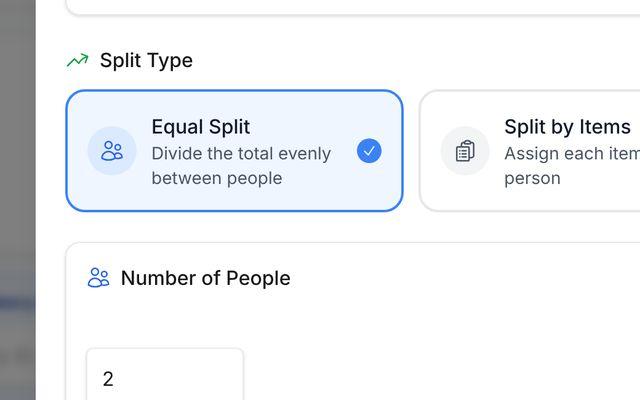
Split a bill between people
Divide one bill into shares so each guest pays their own part, by cash or by card.
47 secondsEverydayCashier, Waiter
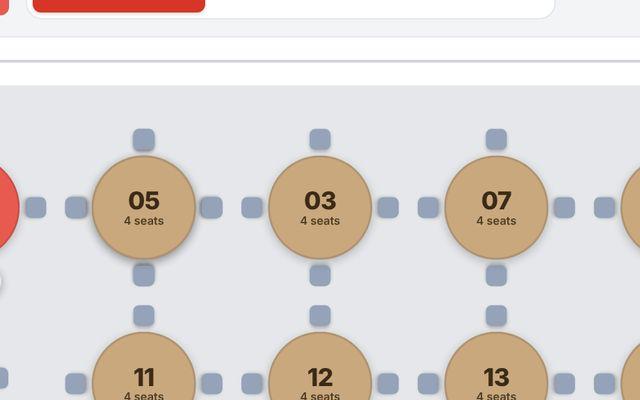
Take a dine-in order
Seat guests at a table, send their order to the kitchen and take payment when they are ready to leave.
1 minuteBasicsCashier, Waiter
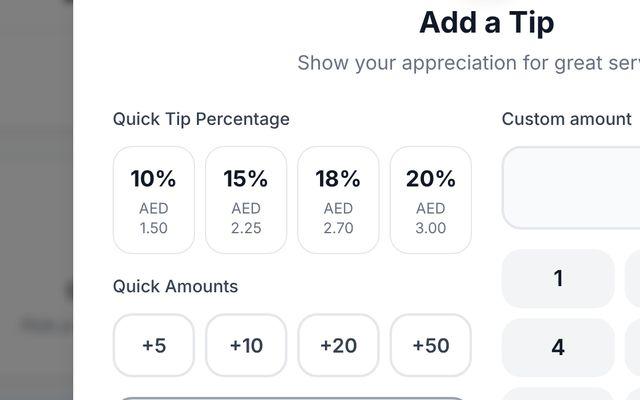
Take a card payment with a tip
Add the guest’s tip before you pick the card, so the card is charged once for the bill and the tip together.
51 secondsEverydayCashier, Waiter